Tap the gear icon to open Settings, organized into GENERAL and CALENDAR tabs. Pick an item on the left; details and toggles appear on the right.
8.1. GENERAL
| Item | Purpose |
|---|---|
| Device Info | View and rename the device; shows the Device ID and its QR code (usable when adding the device in the app) |
| Wifi | Current and available networks, switch or reconnect (see 8.2) |
| Theme Color | Eight accent colors (red/orange/yellow/green/teal/blue/purple/brown), applied instantly |
| Voice Broadcast | Broadcast toggle and voice roles (see 8.3) |
| Brightness | Brightness slider with an Auto option |
| Volume | System volume slider |
| Touch Sounds | Touch feedback sounds toggle |
| 24-hour Format | 24-hour clock toggle |
| Time Zone | Time zone picker (same as 2.4) |
| Weather | Weather city picker (same as 2.4) |
| Sleep Mode | Overnight window (e.g. 23:00~07:00) during which the screen sleeps automatically |
| Auto Rotate Screen | Auto-rotate toggle |
| System Language | Interface language: English / 简体中文 |
| System Update | Current version, Auto Upgrade toggle, manual update check (see chapter 9) |
| Reset the device | Factory reset (high impact — see 2.7) |
| About | MAC address, device SN/model/firmware, app-download QR and official contacts (see 8.5) |
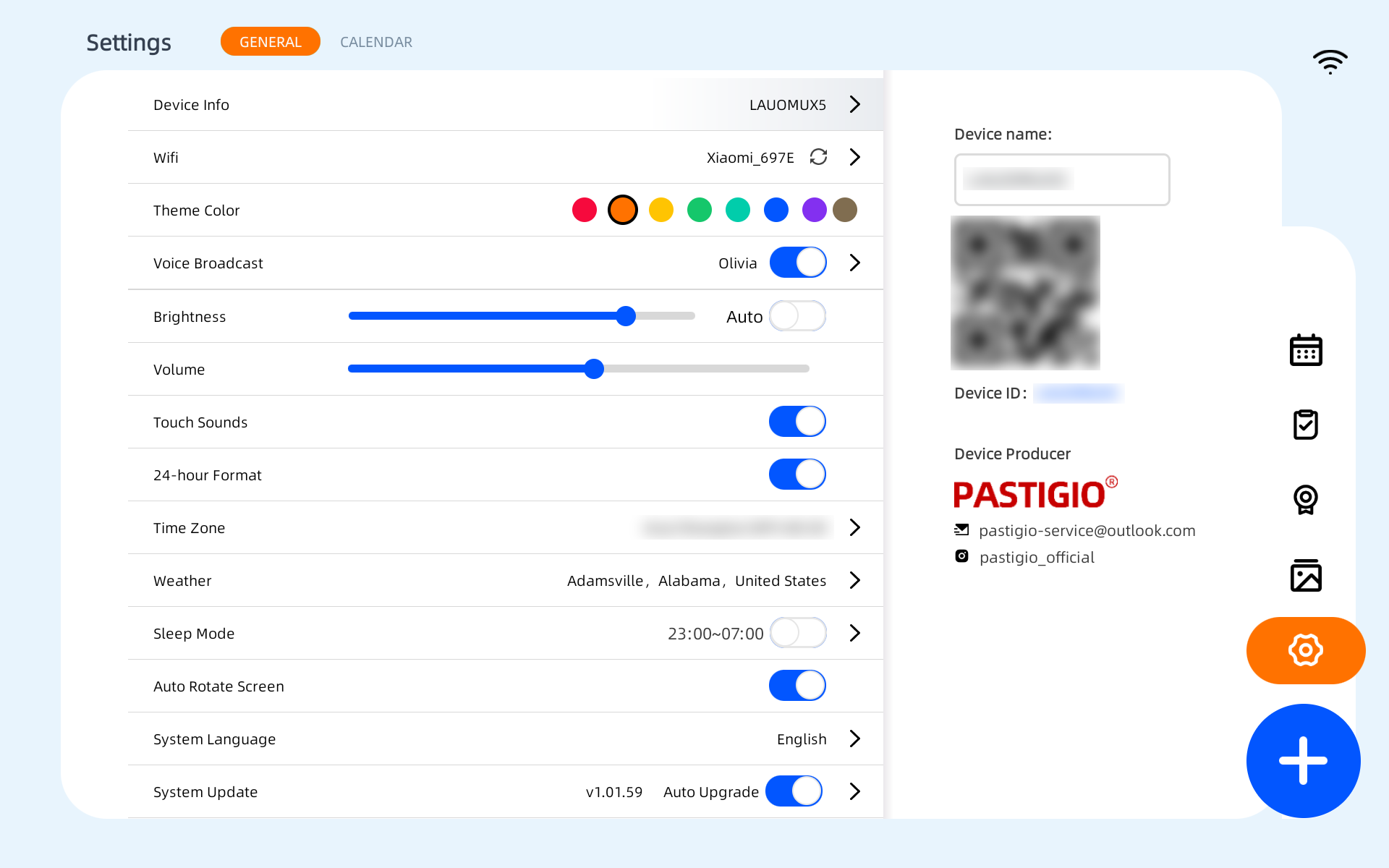
GENERAL (top): item list + Device Info detail
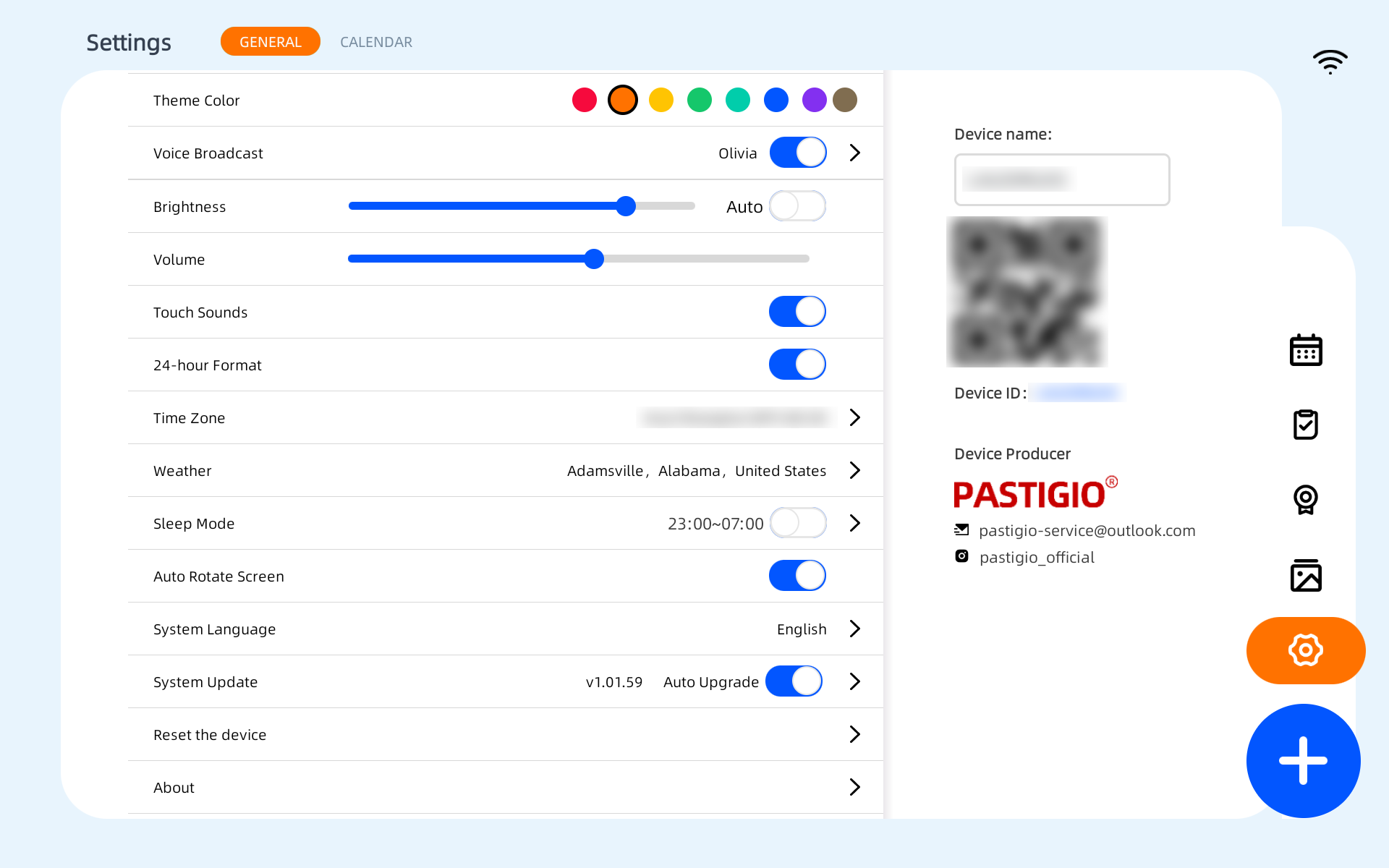
GENERAL (bottom): System Update / Reset the device / About
8.2. Wi-Fi Management
Tap Wifi in GENERAL: the right side lists Current Network and Available Networks. Tap another network to switch (password required); the connected one carries a check mark.
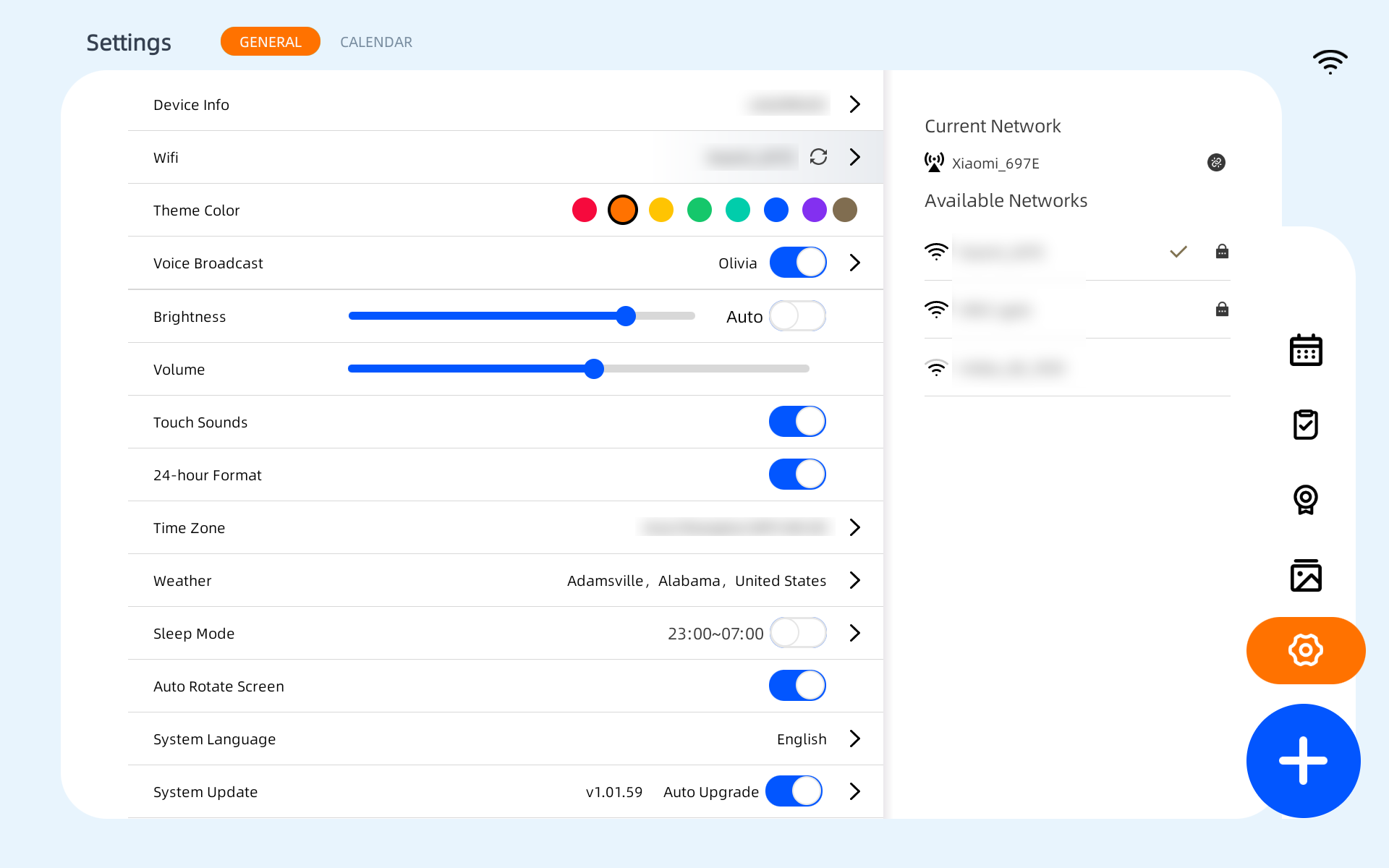
Wi-Fi management: current and available networks
8.3. Voice Broadcast Roles
Turn on Voice Broadcast and pick a voice under Select Role: Olivia (gentle female), Daniel (steady male), Evelyn (lively female). The broadcast language is independent from the interface language and is controlled separately.
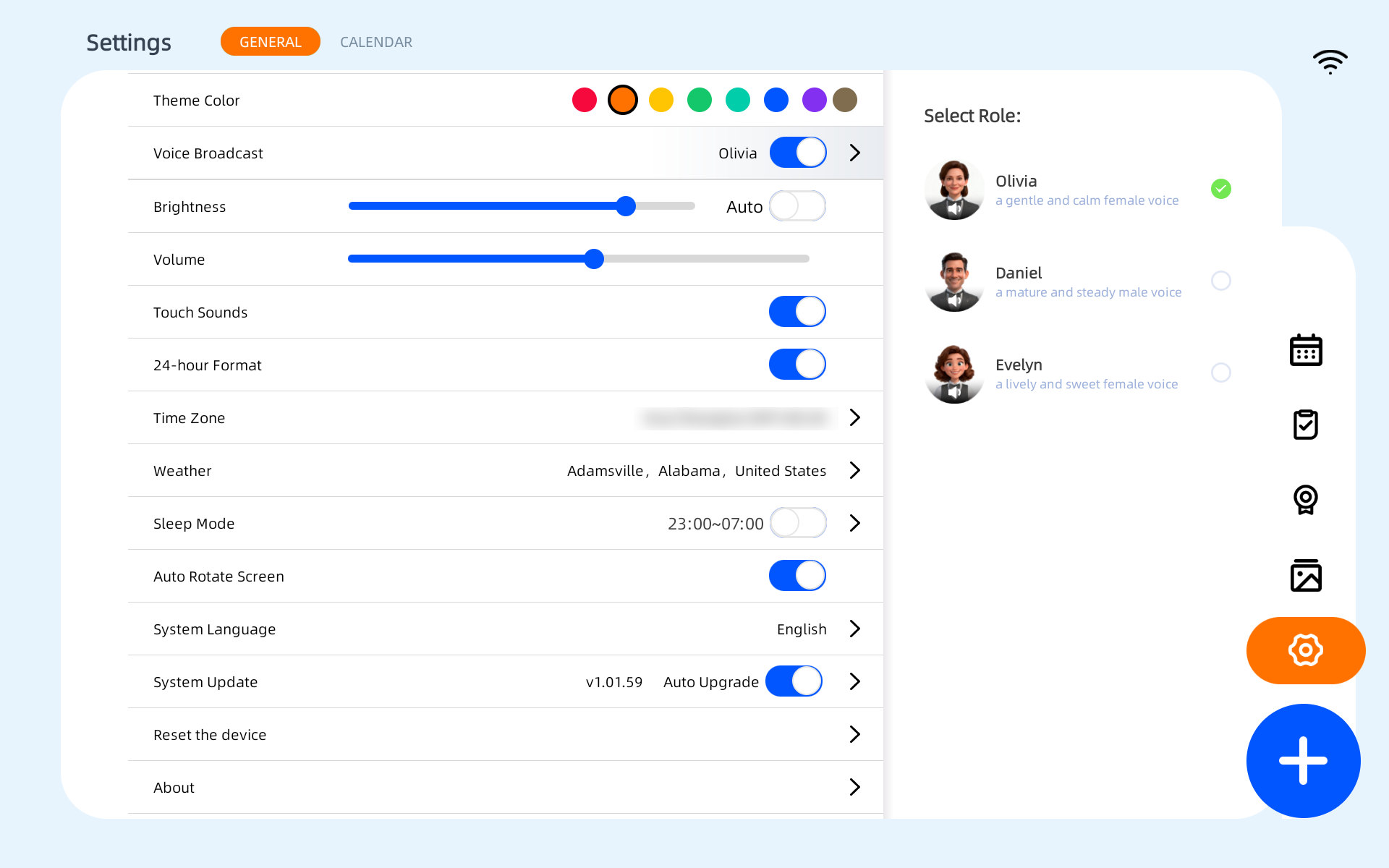
Select Role: voice broadcast roles
8.4. CALENDAR
| Group | Item | Description |
|---|---|---|
| Display Members | Member avatars | Choose which members appear on the calendar and in task/reward lists; synced with the member card toggles on the home screen (see 3.2) |
| Reminder | Remind Later Duration | Delay in minutes for “remind me later” (default 5) |
| Photo | Playback Order | Received time or Shuffle |
| Switch interval + Screen saver mode | Slideshow interval 10/20/30/60s; with screen saver on, the album auto-plays after N idle minutes | |
| Photo Playback Background | Solid Black or Blurred | |
| Other | Start week on | Sets the first day of the week to Sunday or Monday: it decides the column order of the Month view and the first column of the Week view. Applies immediately — go back to the calendar to see the new layout |
| Birthday & Holiday Celebration Scenes | Birthday/holiday celebration scenes toggle with a Trigger Time (e.g. 08:00): when on, the device plays a fullscreen celebration page automatically on a family member's birthday or a holiday once the trigger time is reached. Dates with a green star ★ in the Month view are holidays/birthdays, and tapping the star opens the celebration page manually at any time | |
| Show Tasks in Calendar View | Master switch for showing tasks on the calendar: when on, tasks created with Show on Calendar enabled also appear in the calendar; when off the calendar shows events/reminders only | |
| Delete App Synced Schedules | Deleting app-synced schedules: when on, deleting a schedule that came from the phone app on this device also removes it from the app/cloud; when off the device cannot delete app-synced schedules (no delete button in the detail panel), protecting the phone-side data from accidental deletion |
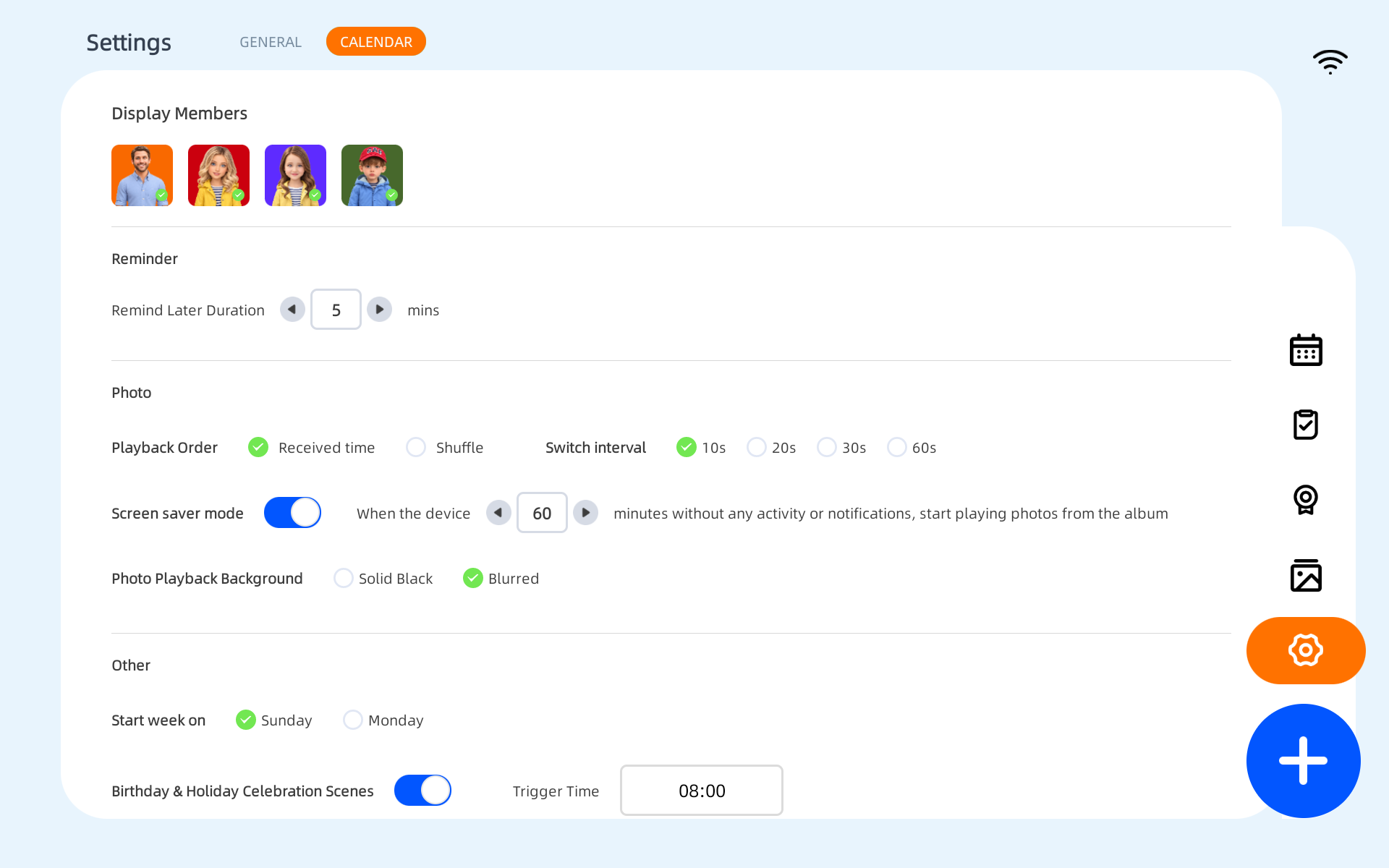
CALENDAR settings (top)
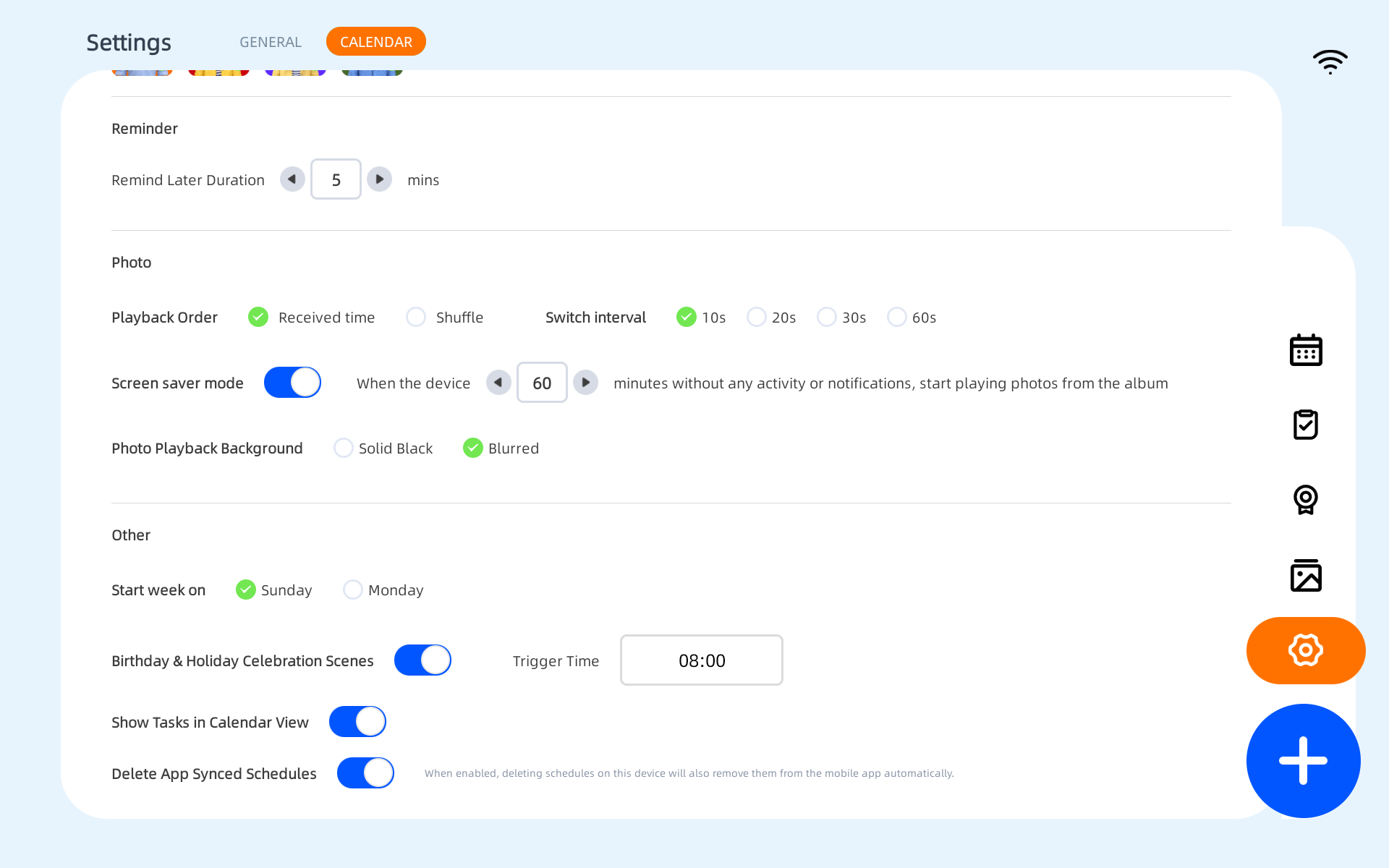
CALENDAR settings (bottom): Start week on / celebration scenes / show tasks / delete app-synced schedules

Fullscreen holiday celebration scene (Veterans Day opened by tapping the green star ★ in the Month view)
8.5. Sleep Mode
Tap Sleep Mode in GENERAL and the right side shows the screen-off/screen-on pickers: Screen Off (e.g. 23:00) and Screen On (e.g. 07:00). Adjust with the scroll wheels and confirm with the green ✓.
- With Sleep Mode enabled the device sleeps automatically during the window to save power — no schedule
or photo display while asleep.
- Birthday/holiday celebration scenes falling inside the sleep window are postponed until the screen wakes
(see 8.4).
- The device wakes automatically at the Screen On time and resumes normal display and reminders.
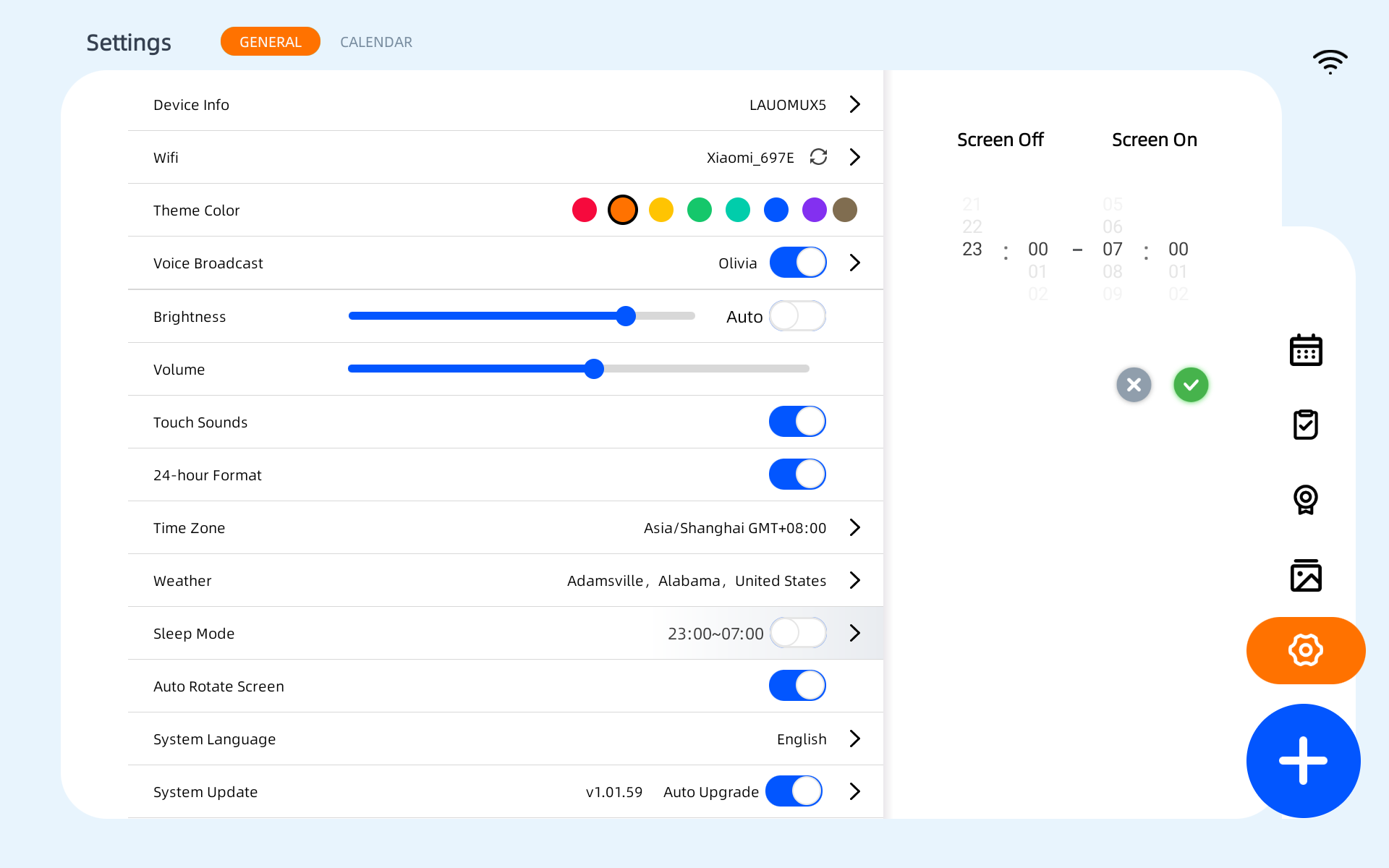
Sleep Mode: Screen Off / Screen On time pickers
8.6. About
Shows the KAIROS AI Calendar brand, MAC address, device SN, model, firmware version, the app-download QR code, plus the official website, support e-mail and social media — handy when contacting after-sales support.
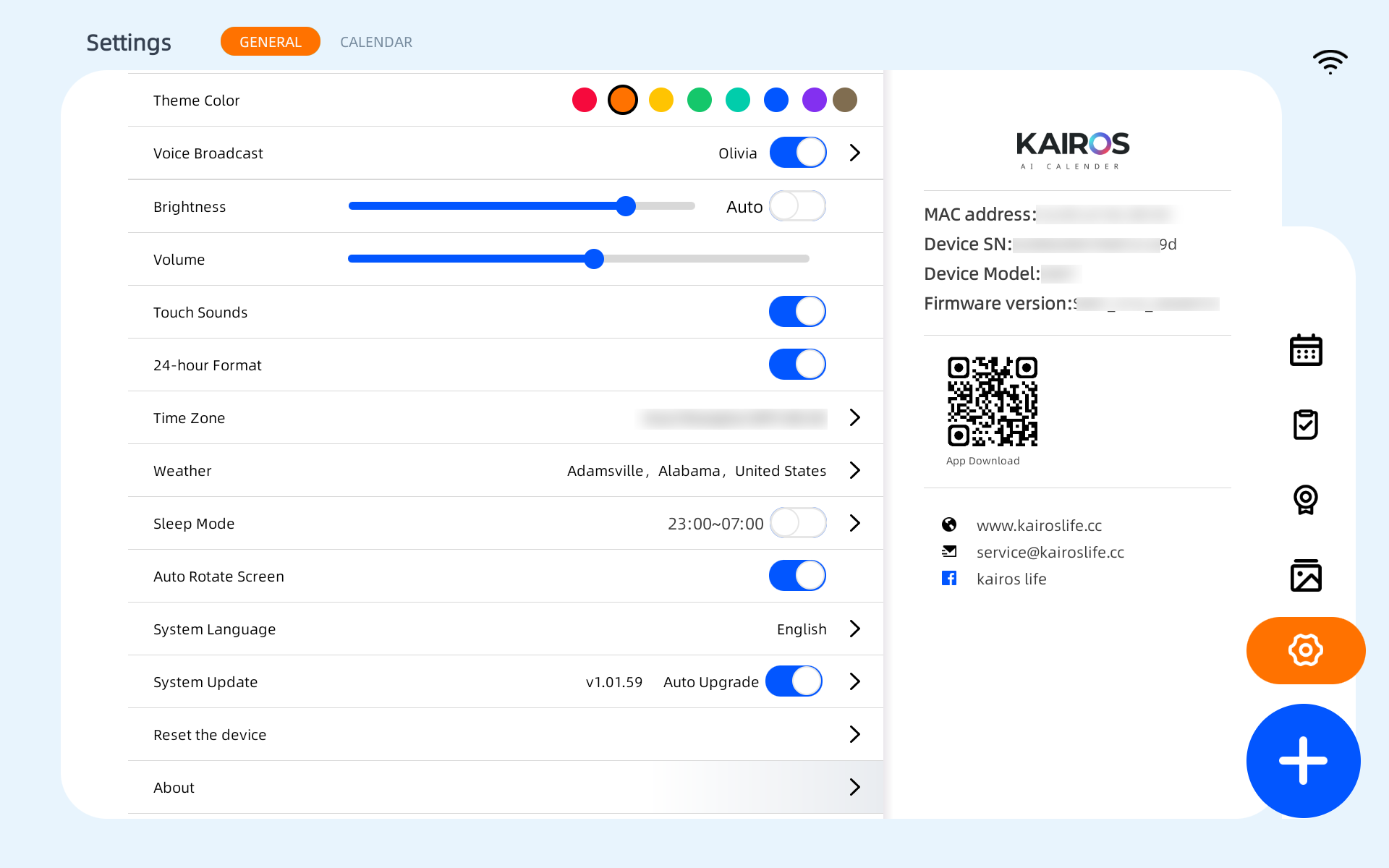
About page