5.1. Tasks Page & Member Cards
Tap the task icon in the right rail to open Tasks. Each member gets a card: the header shows the avatar, done/total and points; the card lists that member's tasks with a check circle on the right; ALL TASK ▲ expands more.
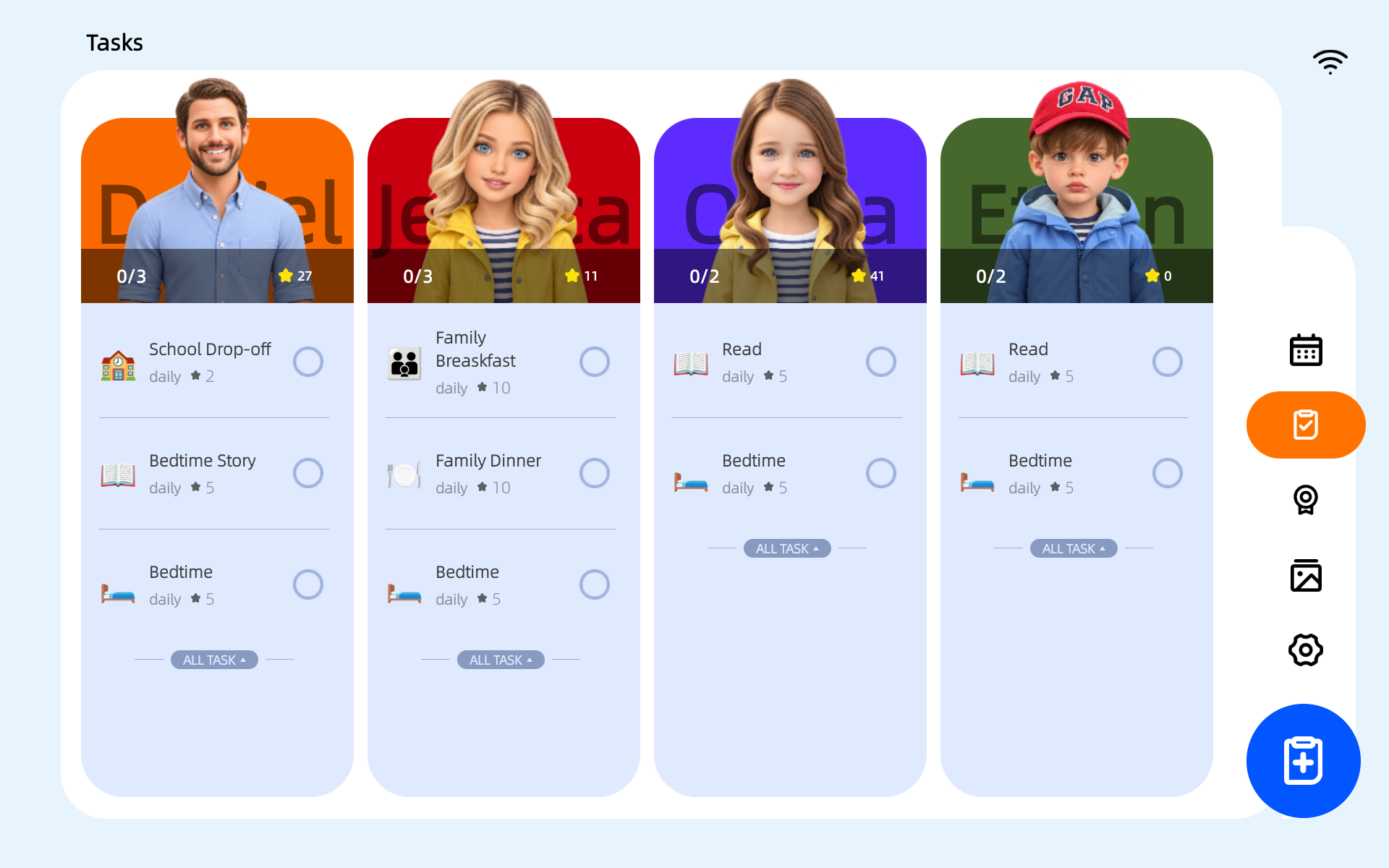
Tasks page: one card per member
5.2. Create a Task
Tap the blue + to open New Task:
| Field | Description |
|---|---|
| Title / Description | Task name (required) and optional notes |
| Timed Task + Start | When on, set the start date and time; when off the task has no fixed start |
| @ members | Choose who should do the task (at least one) |
| Repeats | Repeat toggle: daily/weekly/custom weekdays; repeating tasks generate a new to-do each cycle |
| Points after completion | Points awarded on completion: 1 / 2 / 5 / 10 / 20 |
| Show on Calendar | Also display the task on the calendar |
| Require approval | Completion becomes a request that a parent must approve |
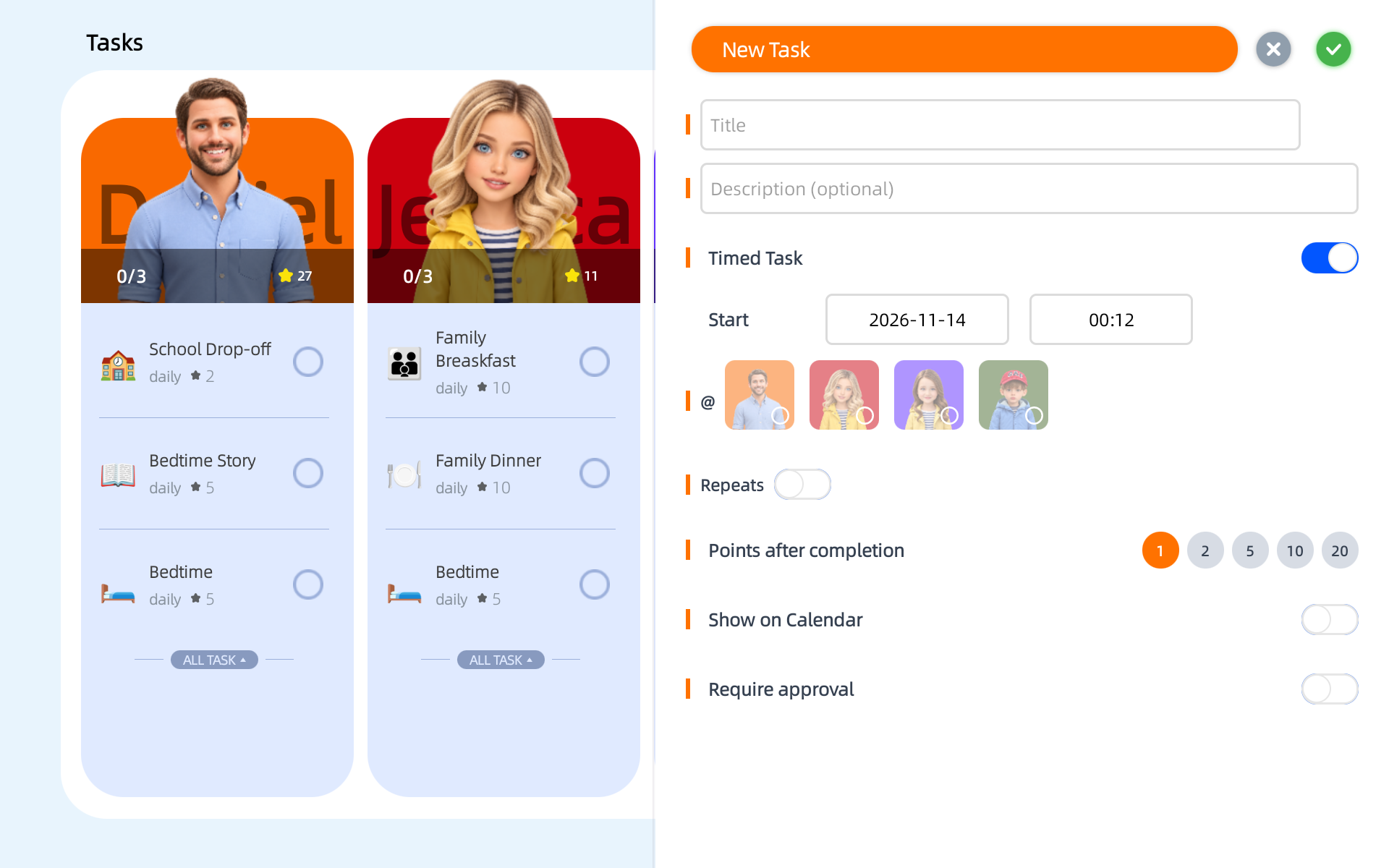
New Task form
5.3. Completion & Approval
- When due (timed tasks unlock at the start time), the member taps the circle next to the task.
- If Require approval is on, a request dialog appears — tap send to submit the application.
- Once a parent approves (phone app or device), the task is marked complete and points are added.
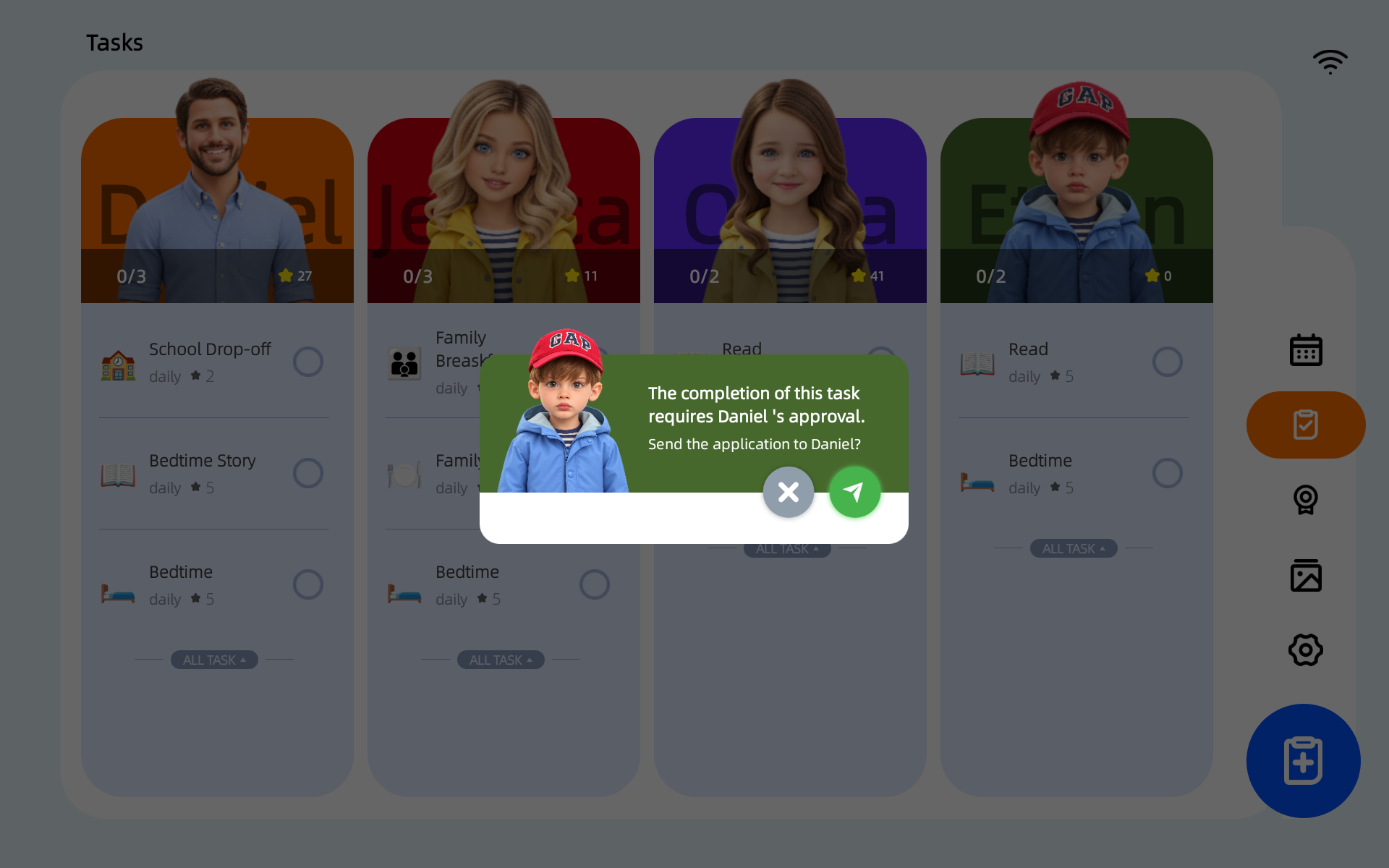
Approval request dialog (Send the application to …?)
Tip
Tasks cannot be checked in before their start time; repeating tasks show a fresh circle every cycle, and points accumulate on the member card.