4.1. Day / Week / Month Views
Tap Day Week Month in the top bar to switch views; the ← → arrows page by month, week or day. Month view shows compact event chips, and a green star marks birthdays/holidays.
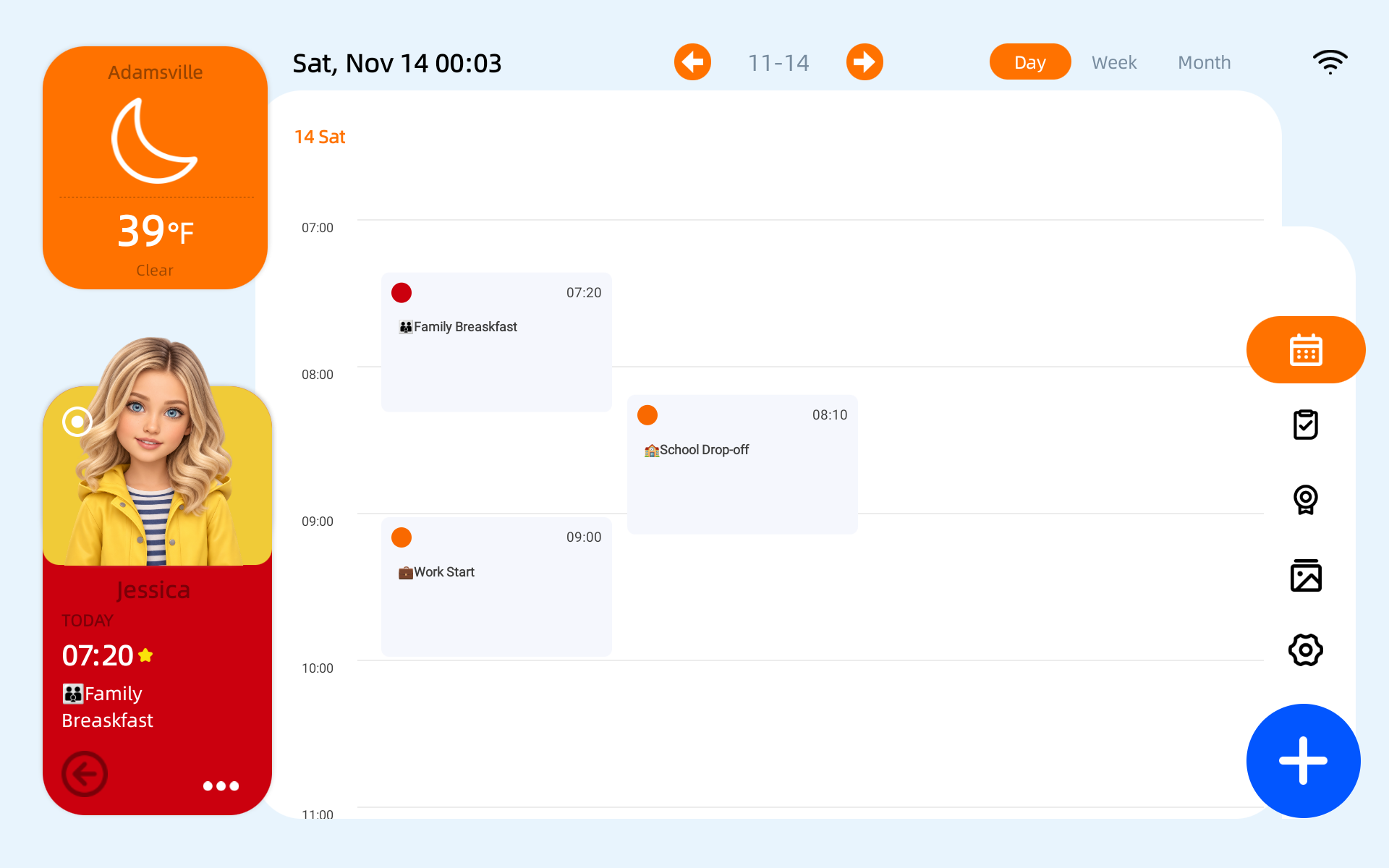
Day view: the day's events on a time axis
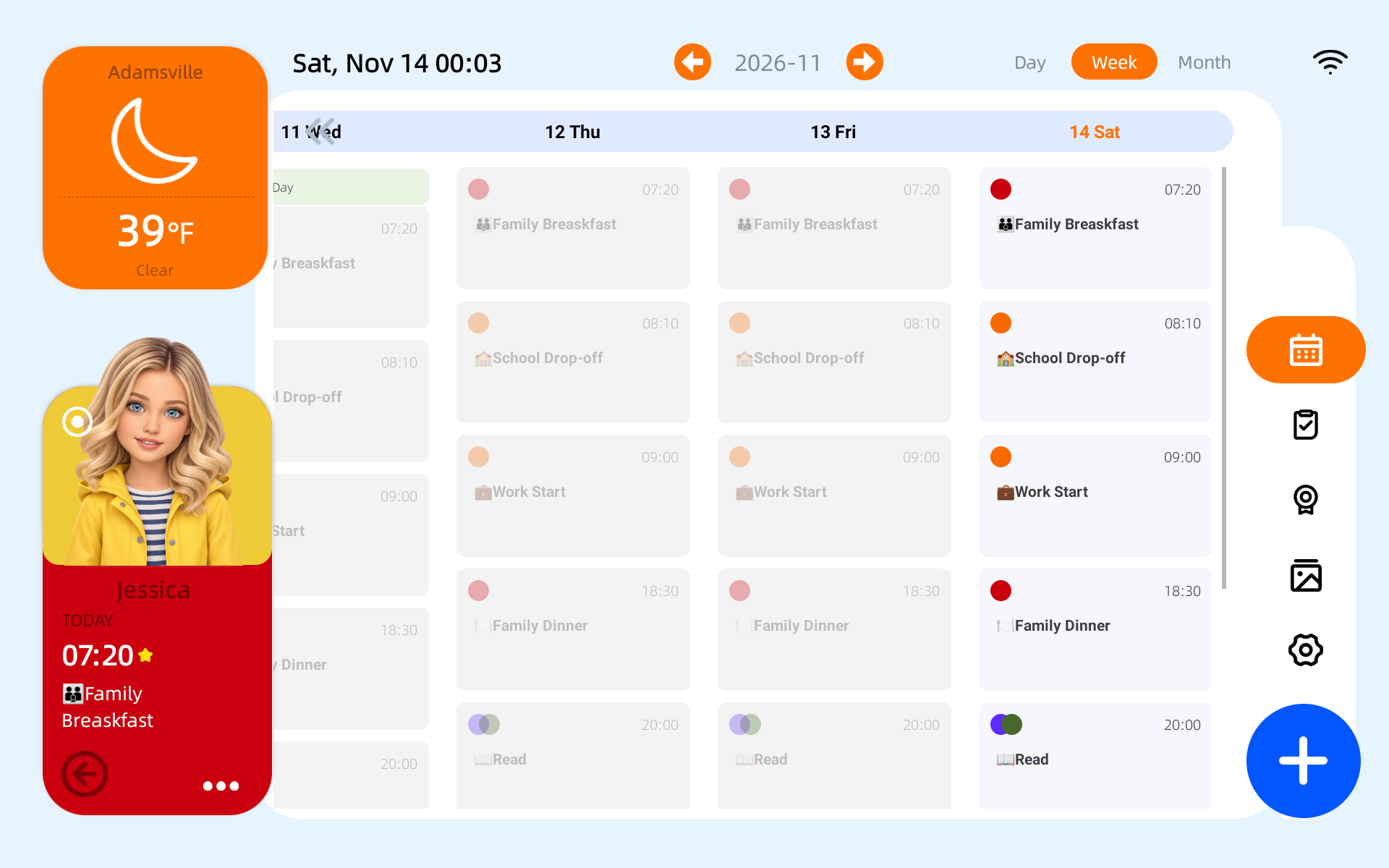
Week view: one column per day, scroll vertically
4.2. Event Details
Tap any event chip and a detail panel slides in from the right with the title, time, members, repeat rule and reminder:
- Regular events/reminders: the panel header has ✎ edit and 🗑 delete buttons.
- Task-generated schedules (tasks with Show on Calendar enabled): marked TASKS, without edit/delete
buttons — edit the task itself in the Tasks module.
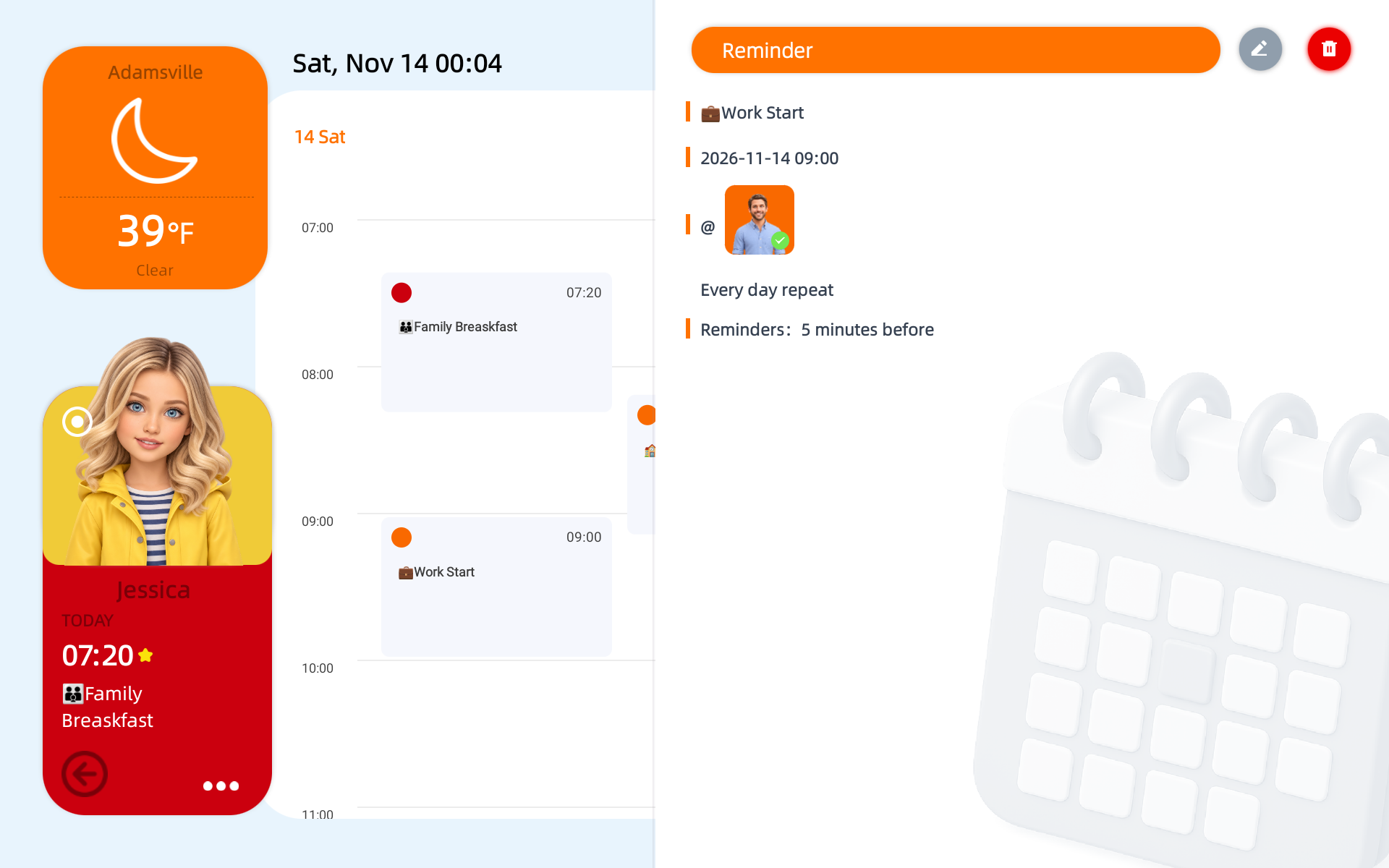
Reminder detail panel (edit/delete in the header)
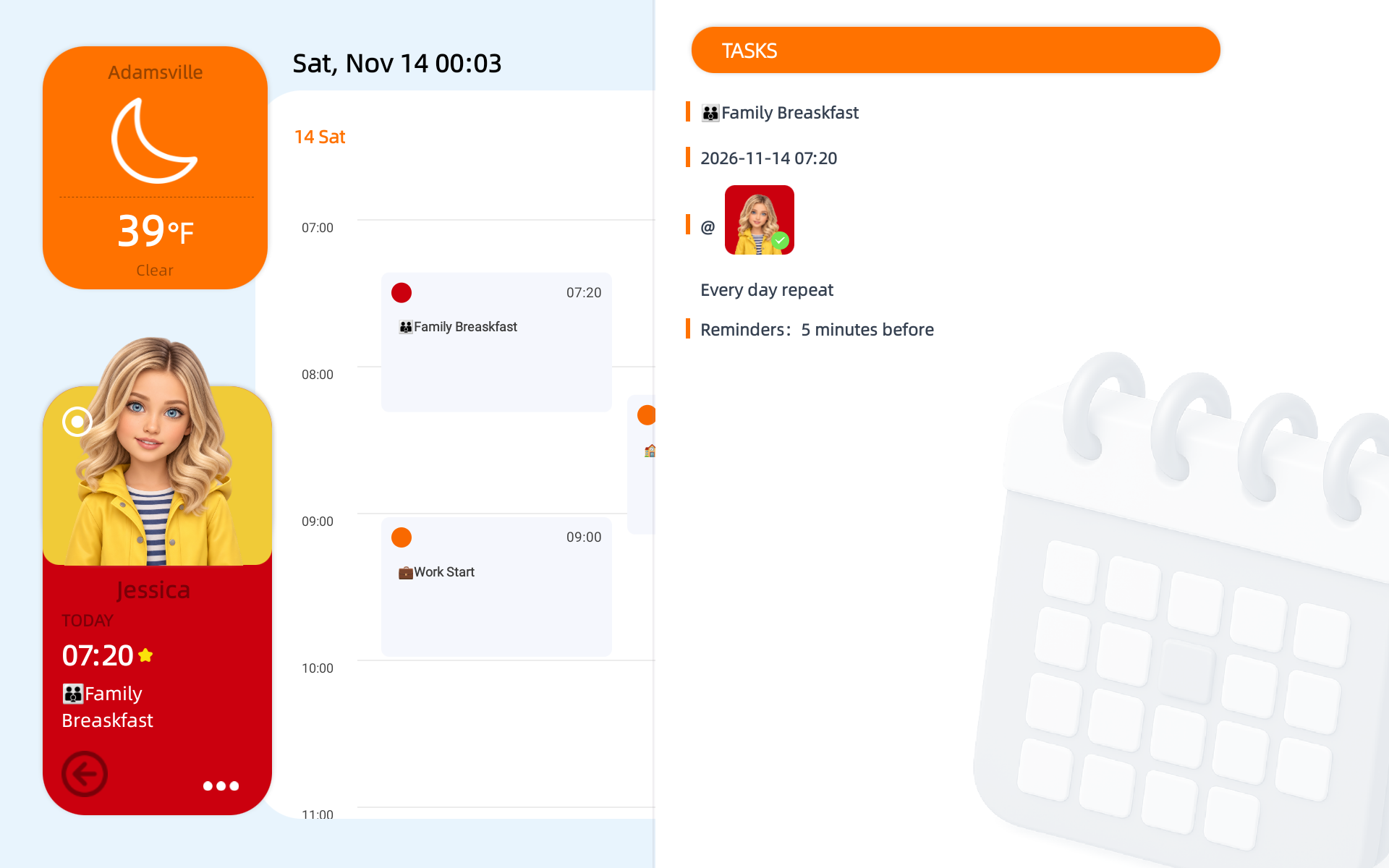
Task-type detail panel (TASKS, no edit/delete)
4.3. Create an Event / Reminder
Tap the blue + in the bottom-right corner of the calendar to open Add Event:
- Enter a Title (required); Description is optional.
- ALL Day toggle: on for all-day items; otherwise fill Starts / Ends date and time (end time may
stay empty but must not be earlier than the start when provided).
- Reminder: choose how long before the event to remind (e.g. 5 minutes before).
- Assign: tap member avatars to assign one or more members (at least one).
- Repeats: enable to repeat every day/week/two weeks/month/year or custom weekdays, with
End Repeat (never / on a date).
- Tap the green ✓ in the header to save, or ✕ to discard.
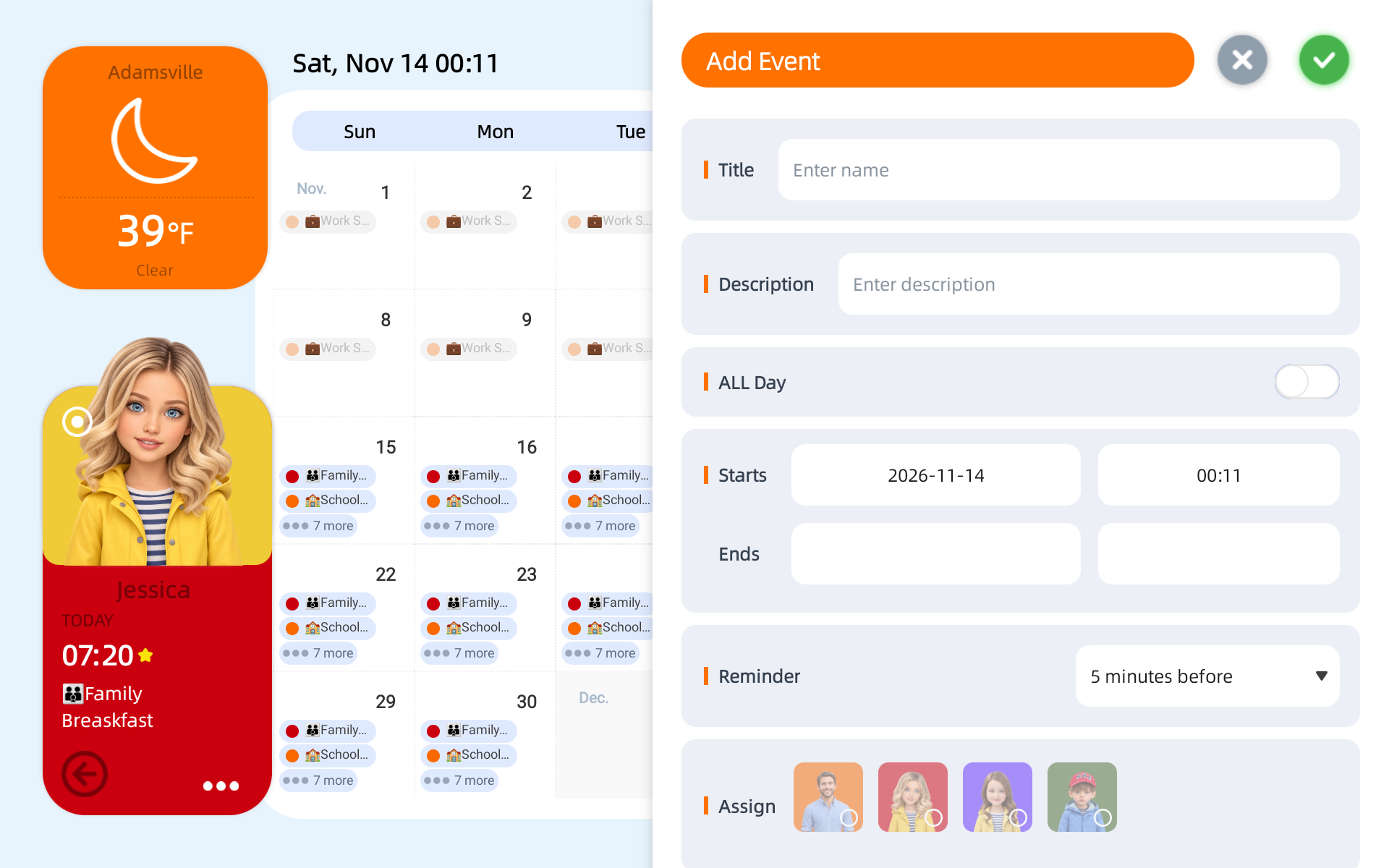
Add Event form
Validation
The title cannot be empty; end date and end time must be provided together and not earlier than the start; at least one member must be selected. Invalid forms are rejected with a prompt.
4.4. Edit & Delete
Tap an event → ✎ in the detail header to edit. The edit form matches the create form and lets you change:
| Field | Description |
|---|---|
| Title / Description | Event name and notes |
| ALL Day | All-day toggle |
| Starts / Ends | Start and end date & time (pickers open on tap) |
| Reminder | Lead time of the reminder |
| Assign | Add or remove members |
| Repeats / End Repeat | Frequency (daily, weekly, biweekly, monthly, yearly, custom weekdays) and end condition (never, on a date) |
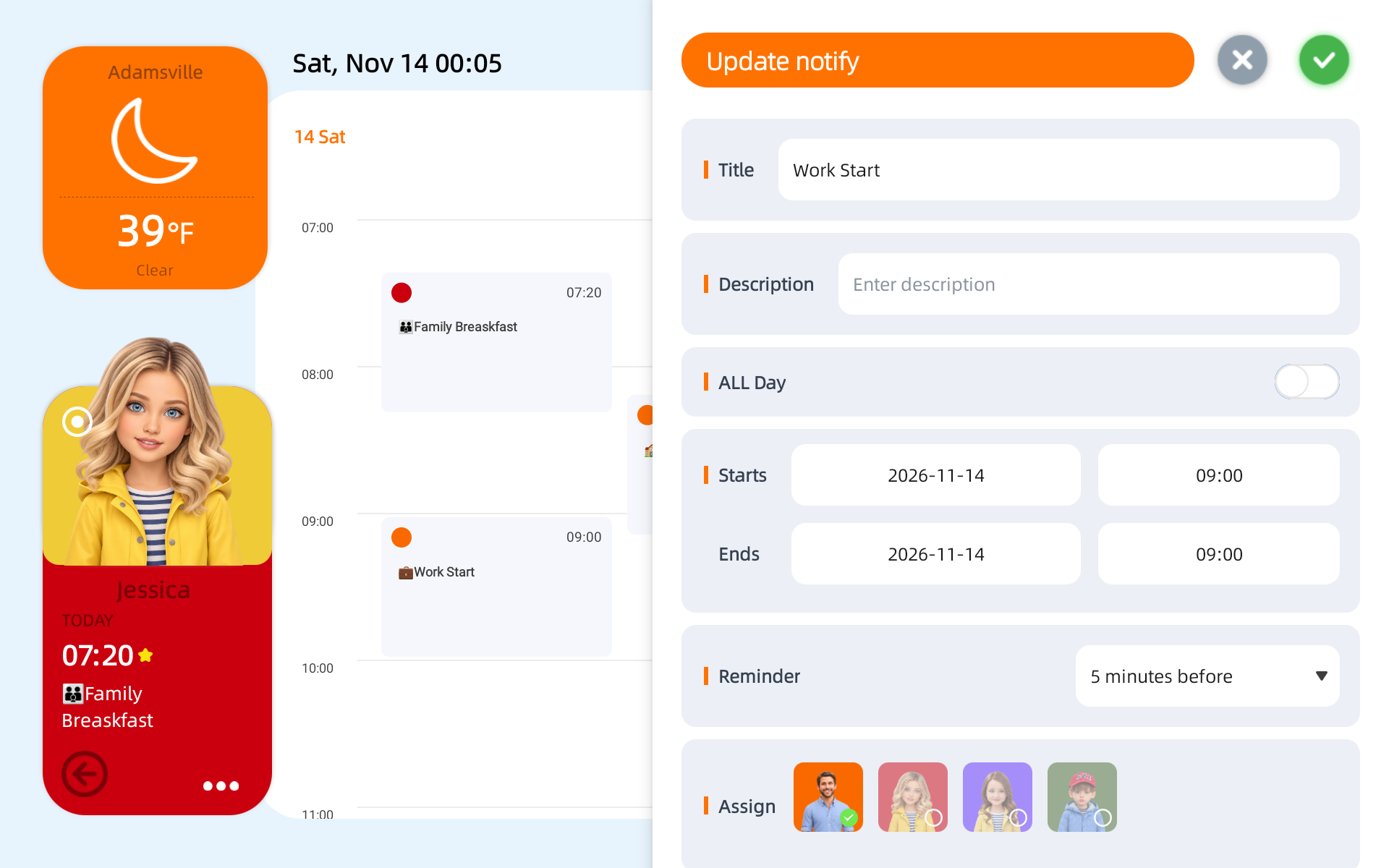
Edit form (Update notify): top fields
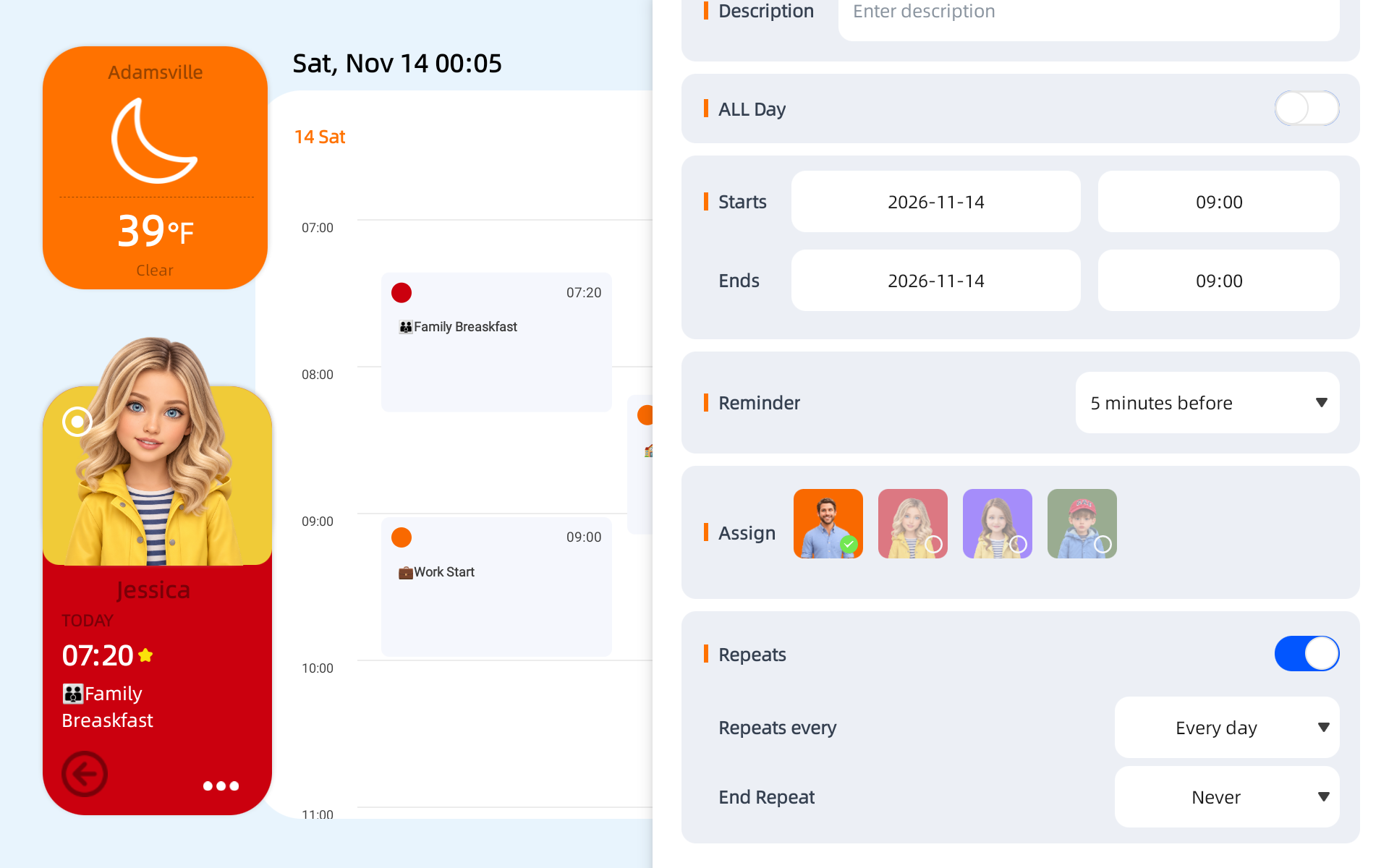
Edit form (Update notify): Repeats section
Tap 🗑 in the detail header to delete. Repeating events first ask for the scope (this one only / this and future / all), regular events show a confirm dialog. Deletion cannot be undone — double-check the scope before confirming. Whether schedules synced from the phone app can be deleted on the device is controlled by Settings → CALENDAR → Delete App Synced Schedules (see 8.4).