3.1. Screen Layout
After binding, the home screen opens on the Month view. There are five areas:
| Area | Where | Description |
|---|---|---|
| Weather card | Top-left | Weather city, condition icon, temperature; tap for details / refresh |
| Member card | Left side | Family members on a carousel: avatar, name and TODAY preview; ← previous member, ··· more actions (see 3.2) |
| Calendar area | Center | Content of the current view (month/week/day); top bar has date & time, page arrows and the Day / Week / Month switch; a green star ★ marks dates with holidays or birthdays (see 8.4) |
| Right navigation | Right edge | Top to bottom: Calendar, Tasks, Rewards, Photos, Settings; the active module is highlighted orange |
| Add button | Bottom-right | Blue +: creates content for the current module (event / task / reward) |
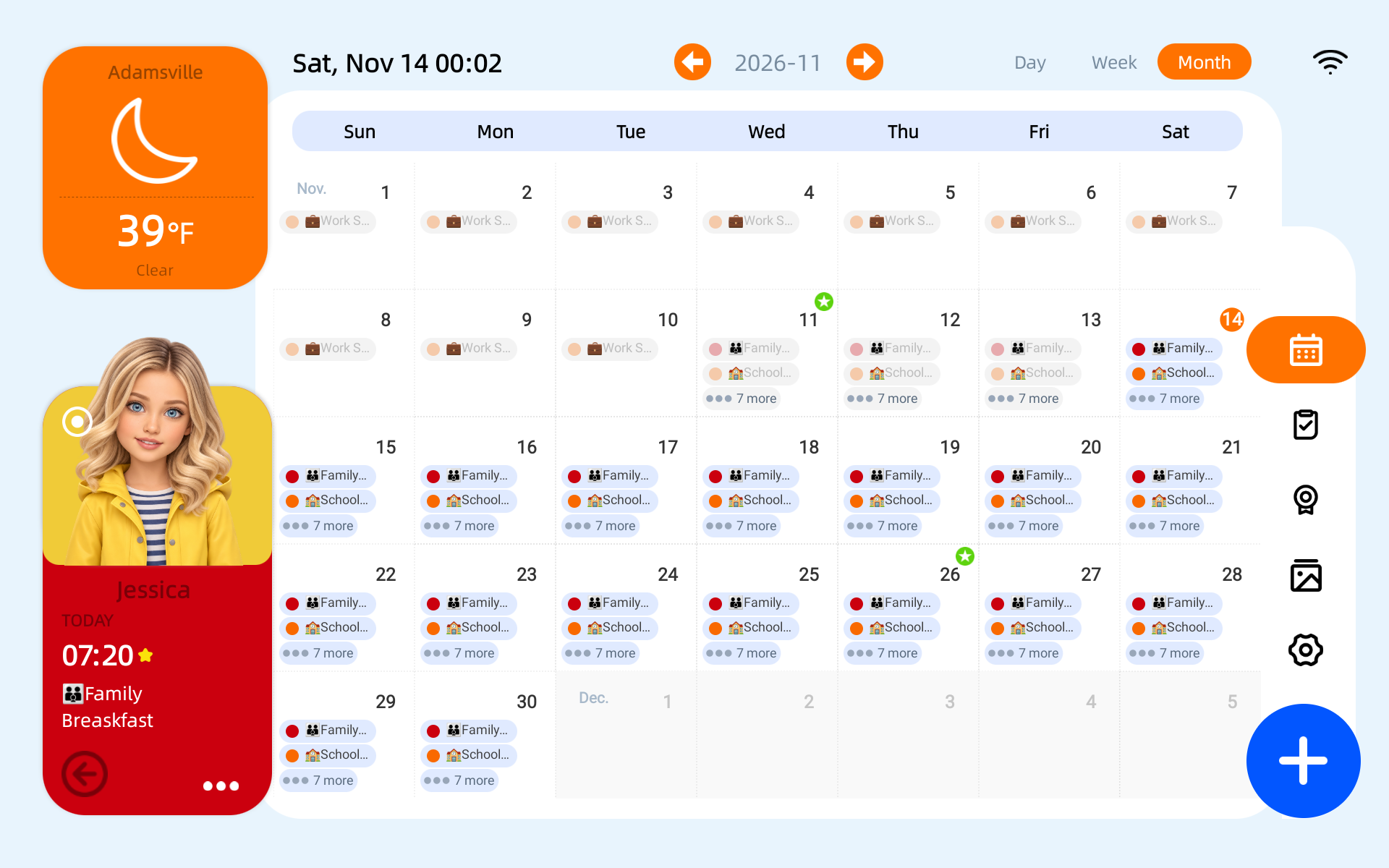
Home screen layout
3.2. Member List & Show/Hide Members
By default one large member card is shown on the left. Tap ··· in the card's bottom-right corner to expand all family member cards side by side, each with a toggle circle in its top-left corner:
- Switch member: tap any member card to bring that member to the front and collapse back to a
single card.
- Show / hide members: check the circle on a card = show that member (their task/reward cards and
calendar content appear); uncheck = hide that member (their events, tasks and rewards are hidden, but not deleted — check again at any time to bring them back).
- This visibility list is the same data as Settings → CALENDAR → Display Members; changes in either
place stay in sync.
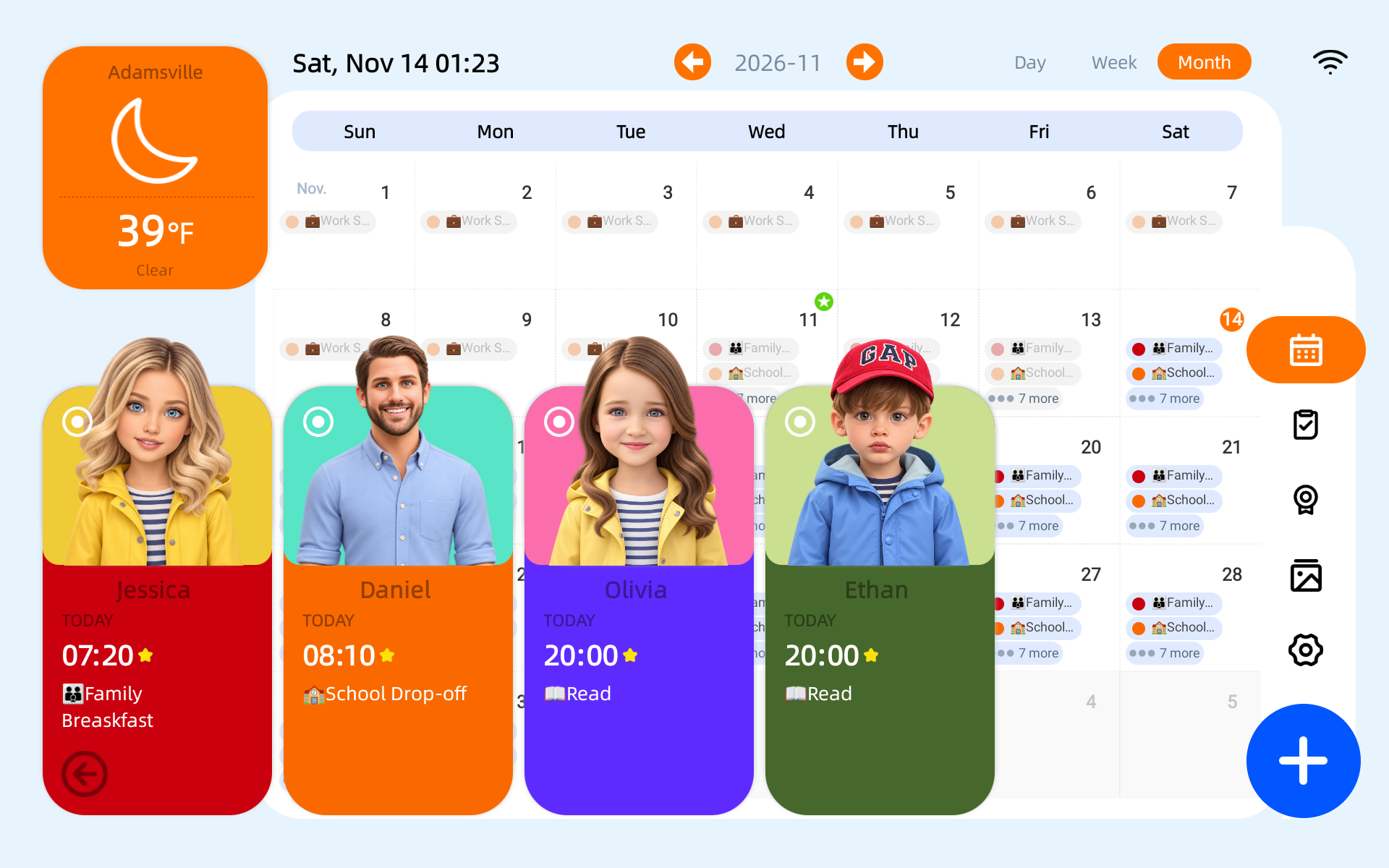
Tap ··· to expand all member cards (toggle circle on each card)
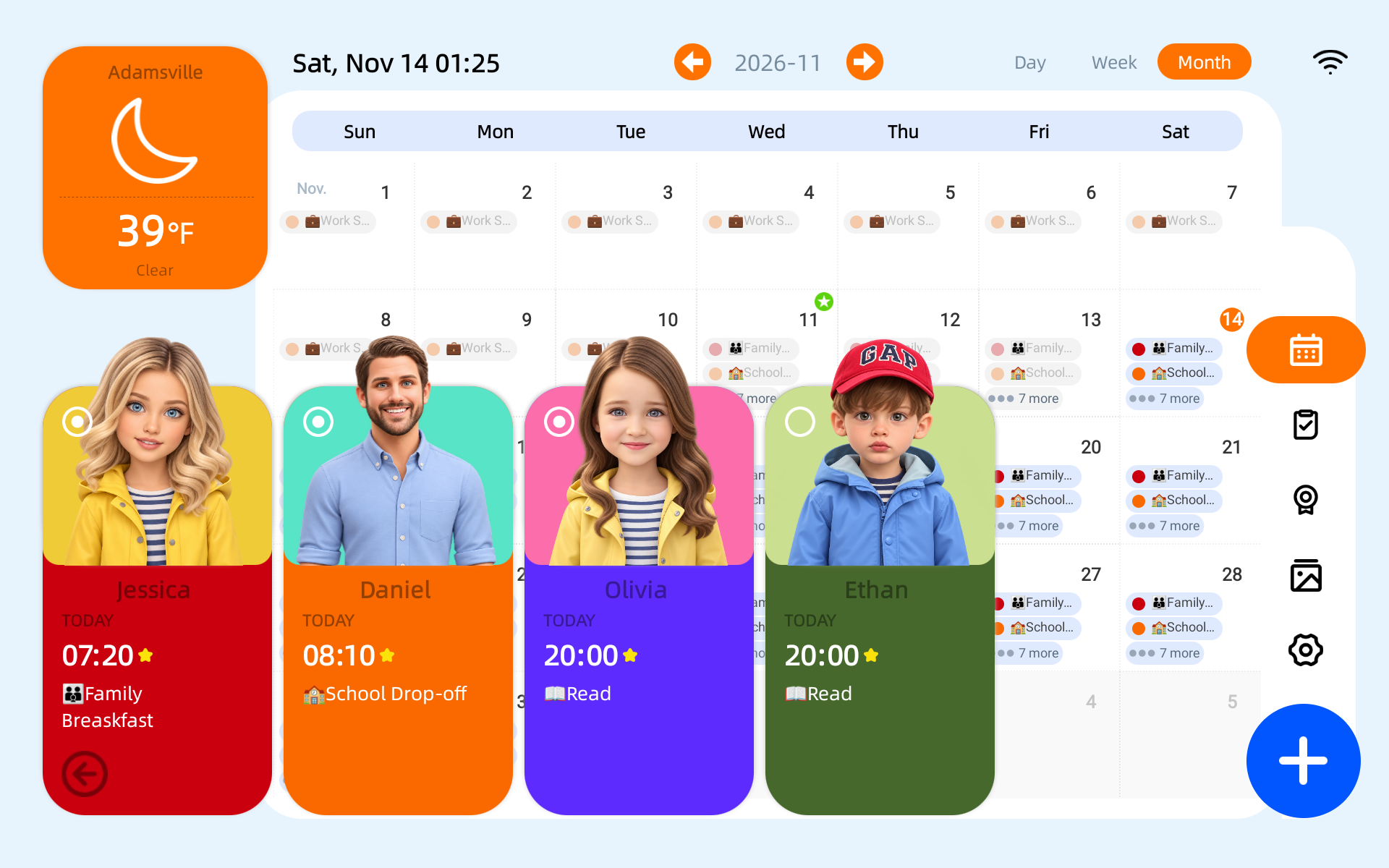
Ethan unchecked: member hidden (check again to show)