2.1 Install and sign in
Install KAIROS Calendar App from the app store or distribution channel provided to you. Open the app and choose an option shown on the sign-in screen. Available methods may include email, Apple, or Google.
- For a new account, choose Sign Up and complete the requested information.
- If an email verification code is sent, enter it on the verification screen.
- Complete your profile if the app asks you to do so.
- Existing users can sign in. If you forget your password, use the password-recovery option and follow the email verification and reset steps.
If a sign-in method is not shown, use one of the available options. For verification issues, check the email address, spam folder, and code entry.
2.2 First use
- Allow notifications to receive reminders. The operating system may ask for microphone, camera, or photo access when you use those features.
- Allow microphone access when prompted to use voice input.
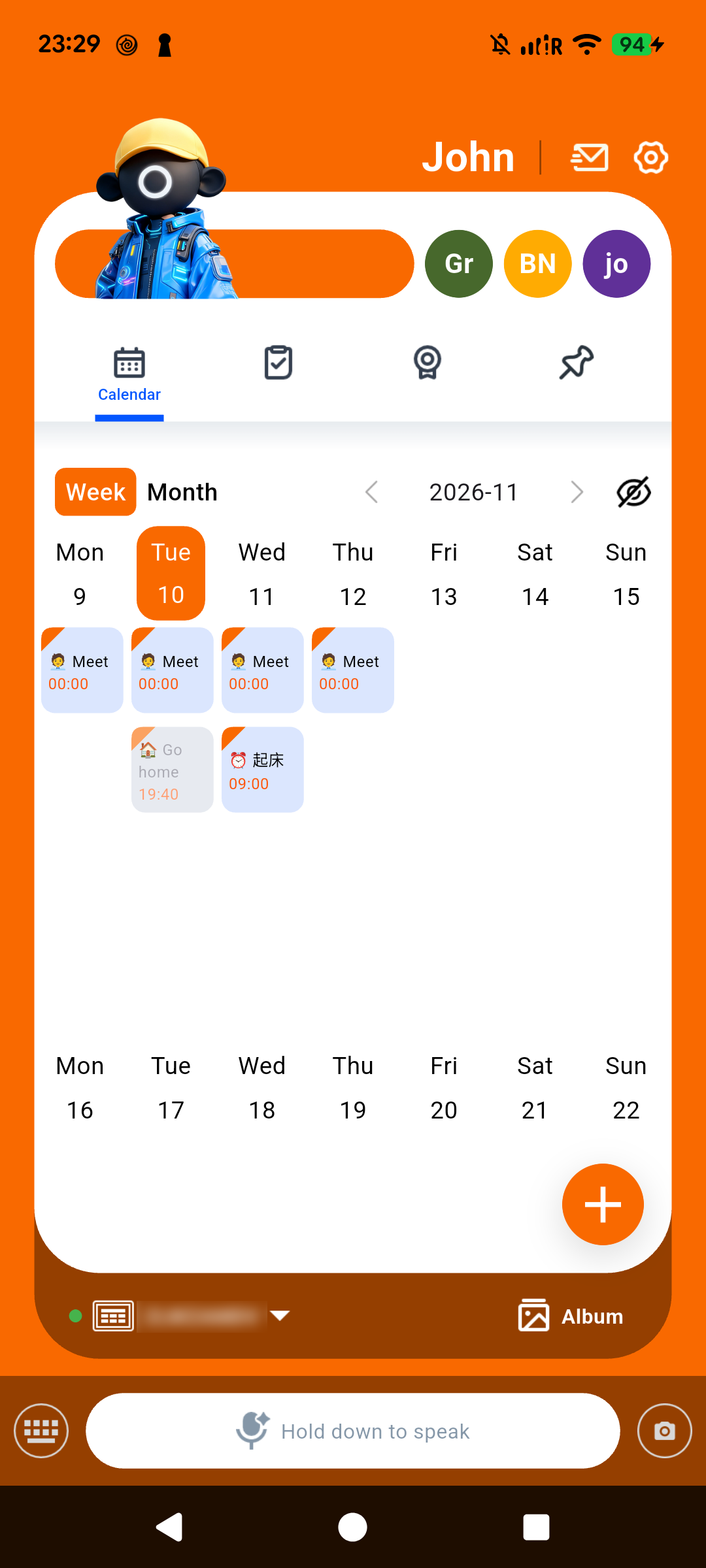
- Use the member avatar or name at the top of the home screen to select a calendar member when multiple members are available.
- Tap the message icon to review messages and the gear icon to open Settings.
- The home screen provides Calendar, Tasks, Rewards, and Notes sections. Shortcuts at the bottom change with the selected section.
2.3 Home screen layout
| Area | Purpose |
|---|---|
| Member avatar/name | View or switch the current calendar member |
| Messages | Review system messages; an indicator may appear for unread items |
| Settings | Open profile, device, calendar sync, language, and help options |
| Calendar area | Choose dates and review events |
| “+” on the calendar | Open the new-event form |
| Tasks, Rewards, and Notes | View and manage each type of content |
| Bottom shortcut | Shows actions for the selected section, including voice input where available |
In-app screenshot:
2.4 Accounts and family members
Switching members changes the information shown on screen. Main accounts, sub-accounts, and family members may have different options. If an action is unavailable, check the selected member and any message shown by the app. Open Settings → Personal Info to view or edit your profile.