What it does: Organizes related items in a named list.
Before you start: Sign in. Sharing or device-sync options depend on your account.
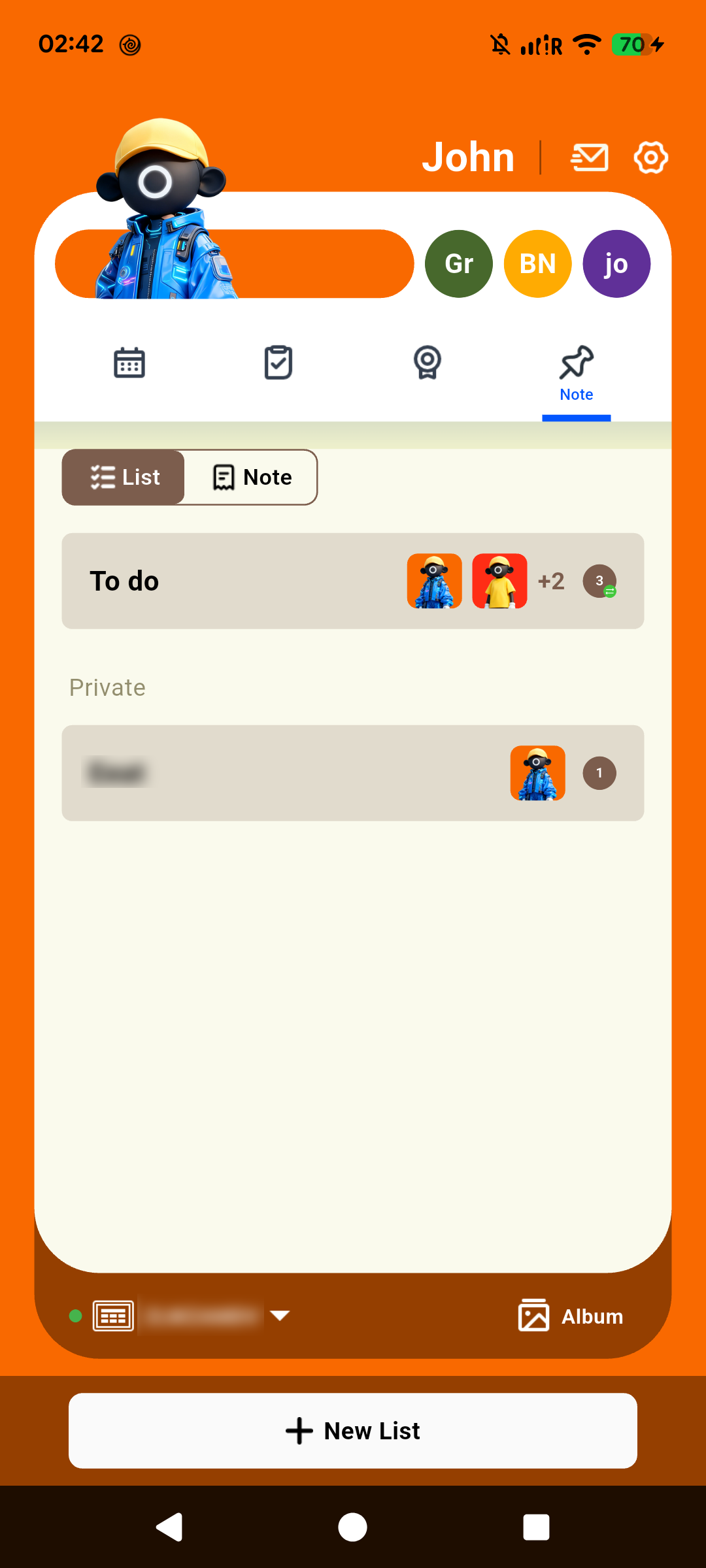
Where to find it: Home screen Notes → List → New List.
Steps:
- Open Notes and select List.
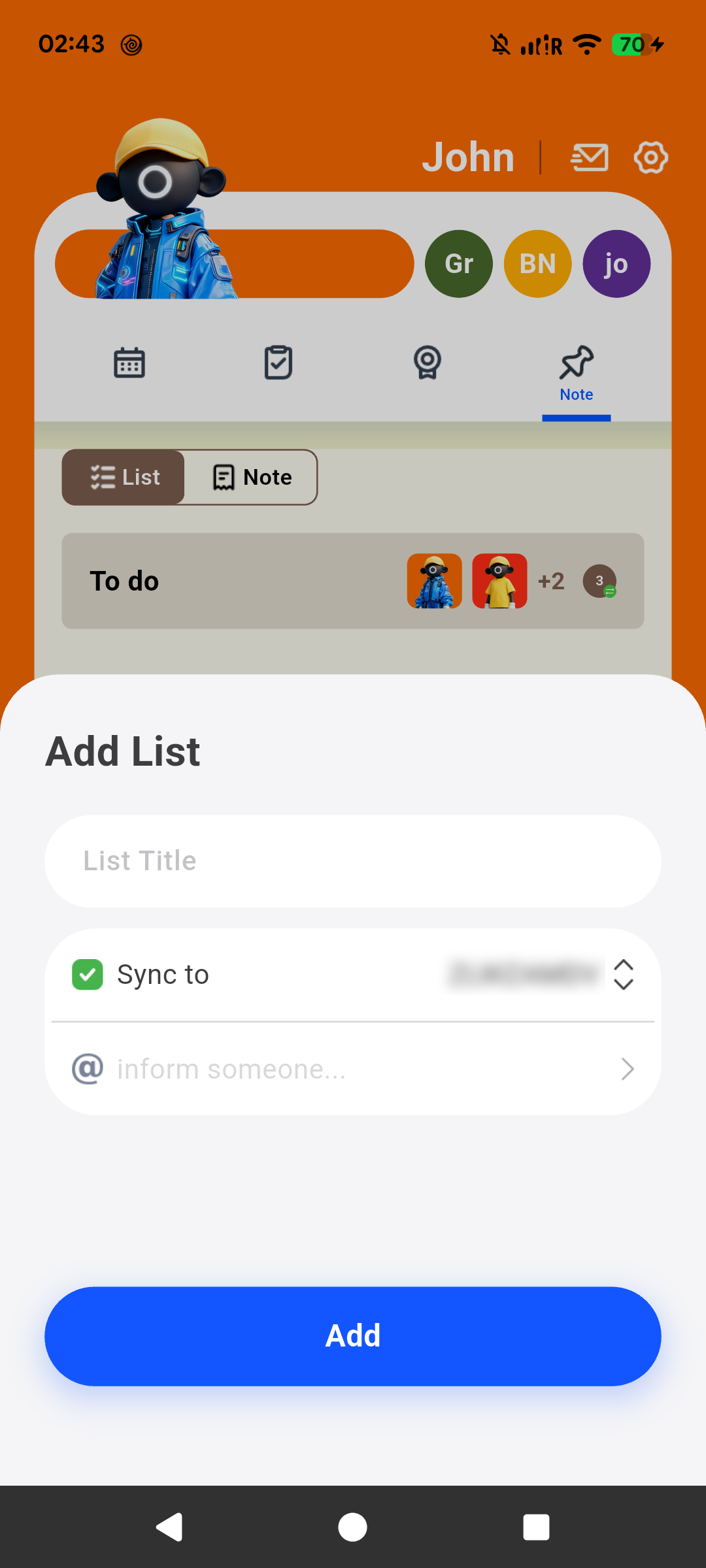
- Tap New List and enter a list title.
- Choose a device or member if those options are displayed.
- Tap Add to create the list.
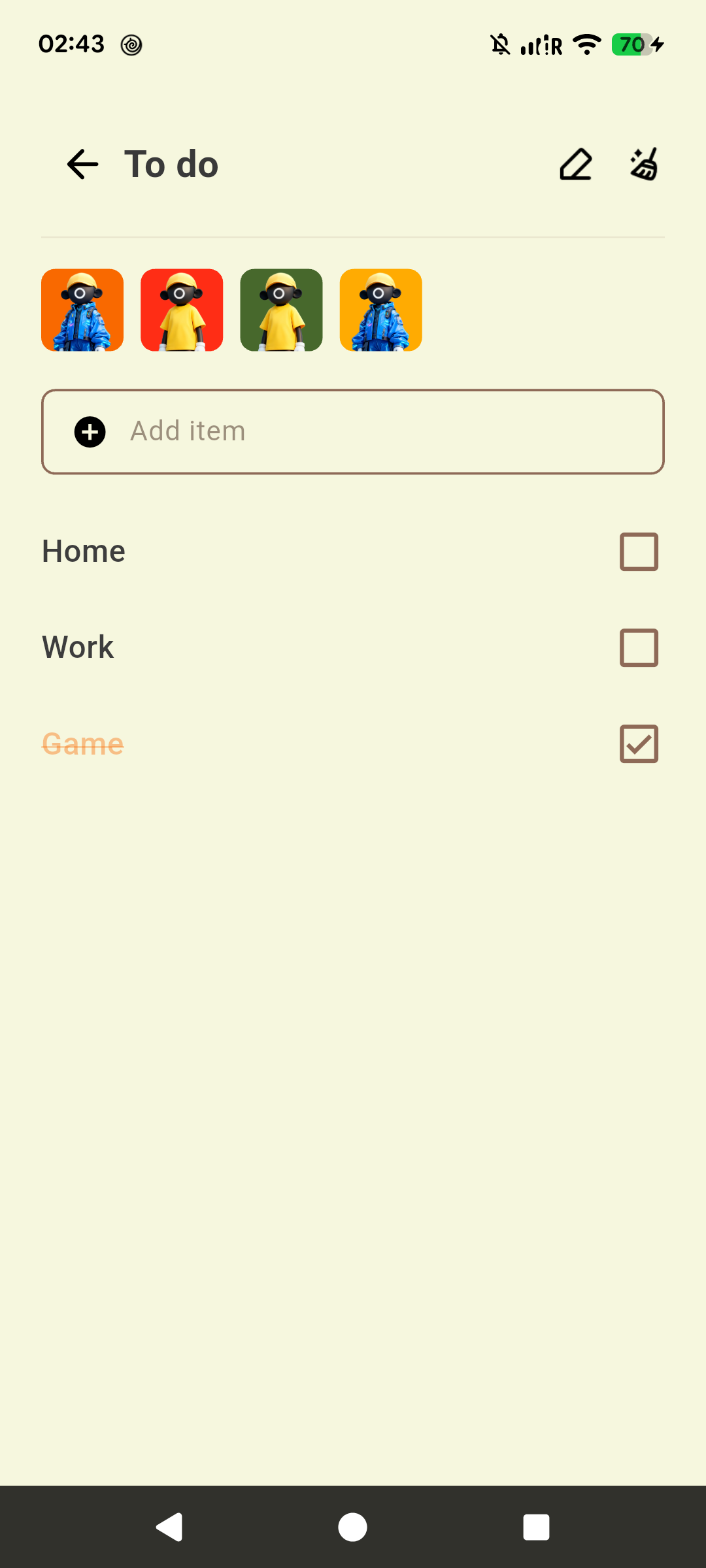
- Open the list card to view its details and use the controls shown to add or manage list items.
- To edit or delete a list, swipe its card and choose the relevant action, then follow the confirmation prompt.
Fields: The list title is required. Device and member options appear only when available.
Result: The new list appears in the list view; edits and deletions update that view.
Notes: Check the list contents before deleting. Private and device lists may appear in separate groups.
Common issue: If no lists appear, tap New List. If a list is missing from a device, check the sync selection.
Example: Create “Weekend shopping,” select a family device if offered, then open the list and organize the shopping items.
In-app screenshots: