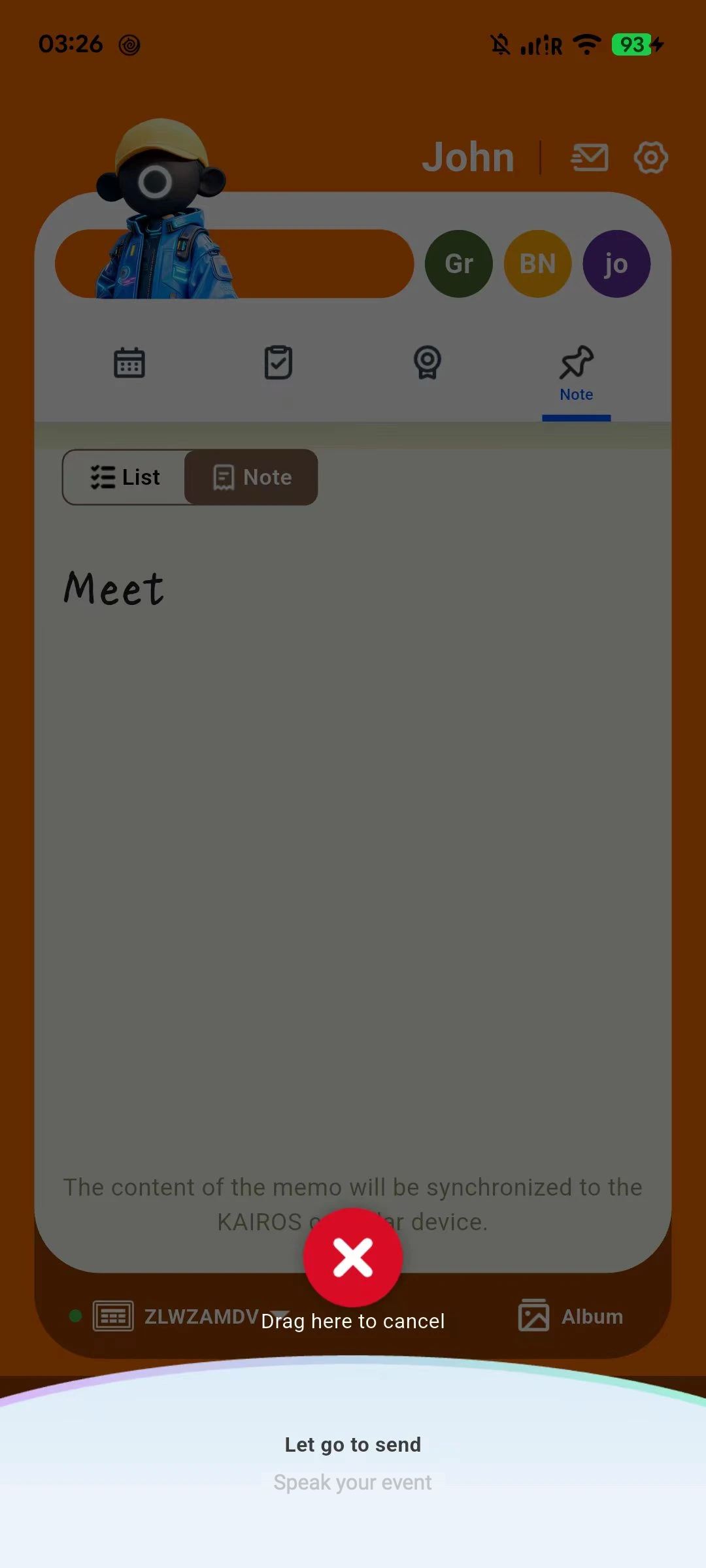
What it does: Saves free-form text or converts a spoken note into text and appends it to your note.
Before you start: Sign in. Voice notes require microphone access and an internet connection.
Where to find it: Home screen Notes, then the Note mode. Use the Voice Note shortcut at the bottom.
Steps:
- Open Notes and select Note.
- To type, tap the note area and enter text. Changes save automatically when you leave the field or switch sections.
- To dictate, press and hold Voice Note, speak clearly, and release.
- Wait for transcription. The recognized text is appended to your existing note.
- Review the added text and edit it if needed.
Fields: Notes are free-form text with no fixed fields.
Result: Typed changes save automatically. A successful voice transcription is appended to the end of the note.
Notes: A voice note needs a valid recording of about two seconds or longer. Voice Note saves text to Notes; Hold down to speak opens the assistant to prepare an event.
Common issue: Check microphone access and reduce background noise if transcription fails. Wait for the save to finish before leaving if the connection is weak.
Example: Hold Voice Note, say “Buy milk and fruit this weekend,” release, and check the transcribed text in Notes.
In-app screenshot: