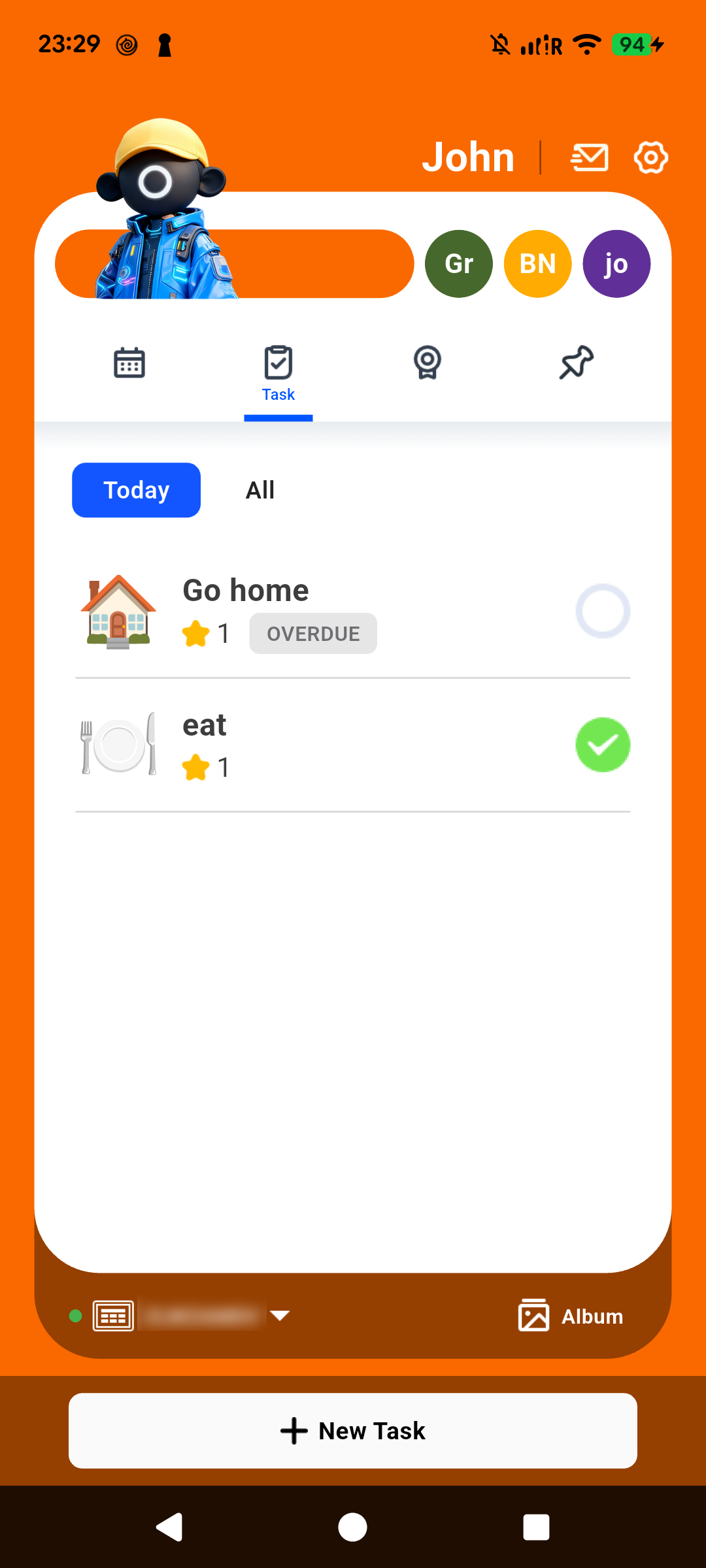
What it does: Tracks tasks by date and, if needed, time and recurrence. Some family tasks can be submitted for another member to confirm.
Before you start: Sign in. Some tasks require a bound KAIROS AI Calendar device; follow the app prompt if shown.
Where to find it: The Tasks section on the home screen and its New Task button.
Steps:
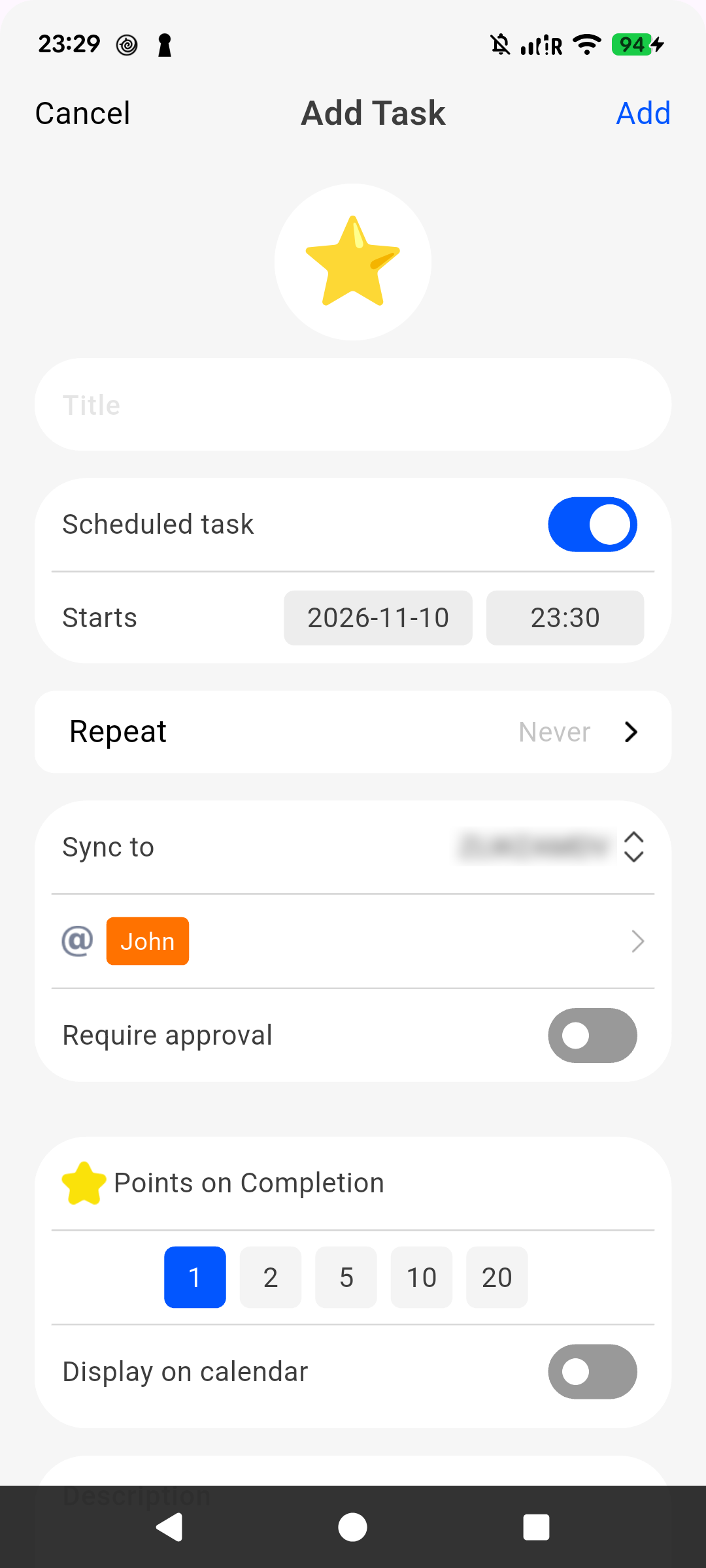
- Open Tasks and tap New Task.
- Choose an icon and enter the task title.
- Select the task date. If you enable a scheduled task, choose its start time.
- Set a repeat pattern and end date if needed.
- Choose a member, device, points, or approval option if the form offers it.
- Tap Add and confirm that the task appears in the list.
- When the task is complete, use its completion/check-in action. If confirmation is requested, review and submit it.
Fields: The title describes the task; date and time determine when it is scheduled; repeat settings determine when it appears again. Other options depend on the form.
Result: The task appears in the task list or on its scheduled date. Its status updates after completion or confirmation.
Notes: Check the selected member. A completion request may need another member’s approval; follow the status shown in the app.
Common issue: If the app requires a device, bind one in Settings → Device and try again. If the task is missing, check the member, date, and list filters.
Example: Add “Read for 20 minutes,” choose today, set 8:00 p.m., repeat daily until a selected end date, and check the task list.
In-app screenshots: