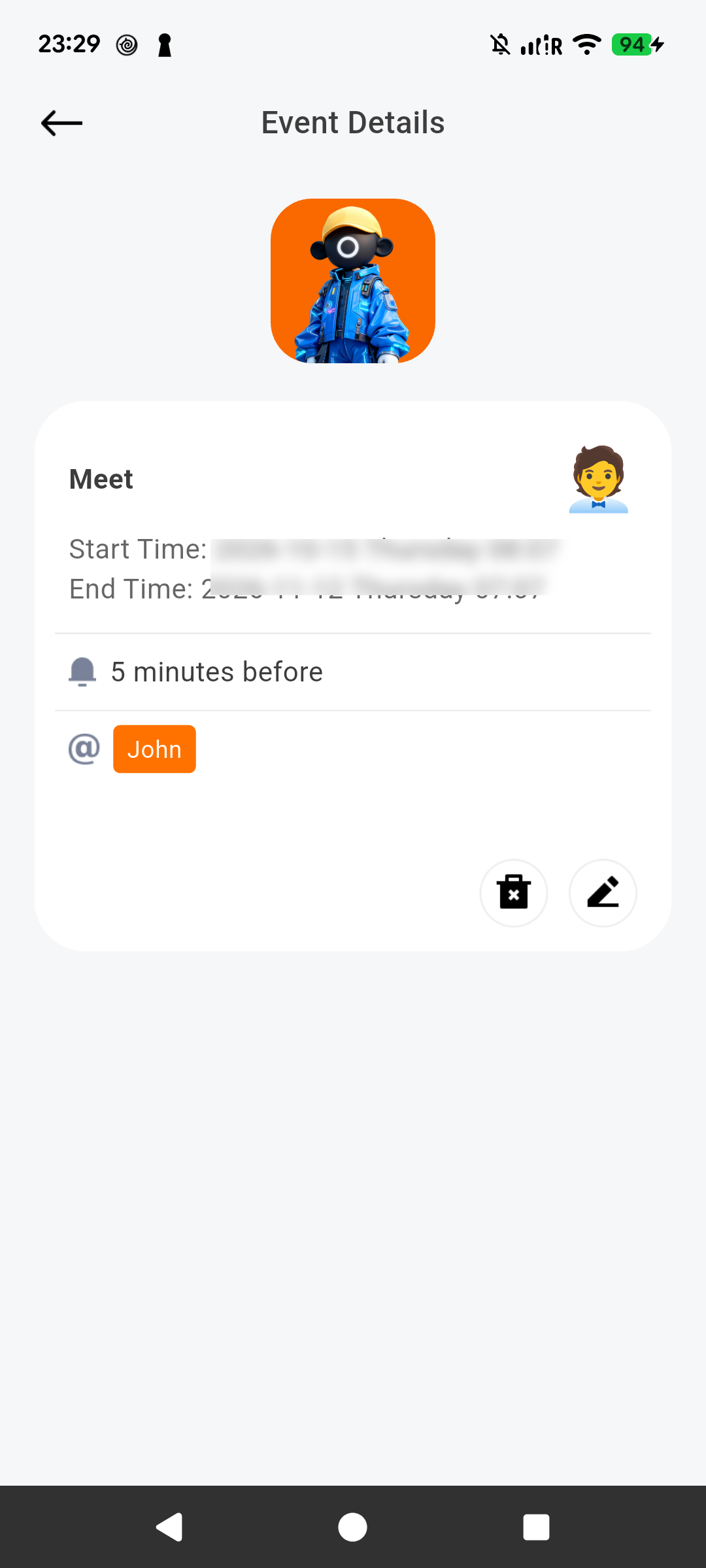
What it does: Opens an event so you can review, change, or remove it.
Before you start: The event must exist, and your account must be able to manage it.
Where to find it: Tap the event card in the calendar.
Steps:
- Select the correct member and open the event date.
- Tap the event card and review its details.
- Choose Edit and change the required fields.
- Tap Confirm or the save control, then check the calendar again.
- To remove it, choose Delete and confirm after reading the prompt.
- For a recurring event, choose whether the change or deletion affects this occurrence, this and future occurrences, or all occurrences, as offered on screen.
Fields: Editing uses the same fields as event creation.
Result: Saved changes appear in the calendar; deleted events are removed from the relevant view.
Notes: Check the affected range before changing or deleting a recurring event. Some external calendar events may be read-only.
Common issue: If Edit is missing, check the selected member and event source. If a change does not appear, check your connection and reopen the calendar.
Example: Open “Family meeting,” change its start time to 7:30 p.m., save, and verify the updated time.
In-app screenshot: