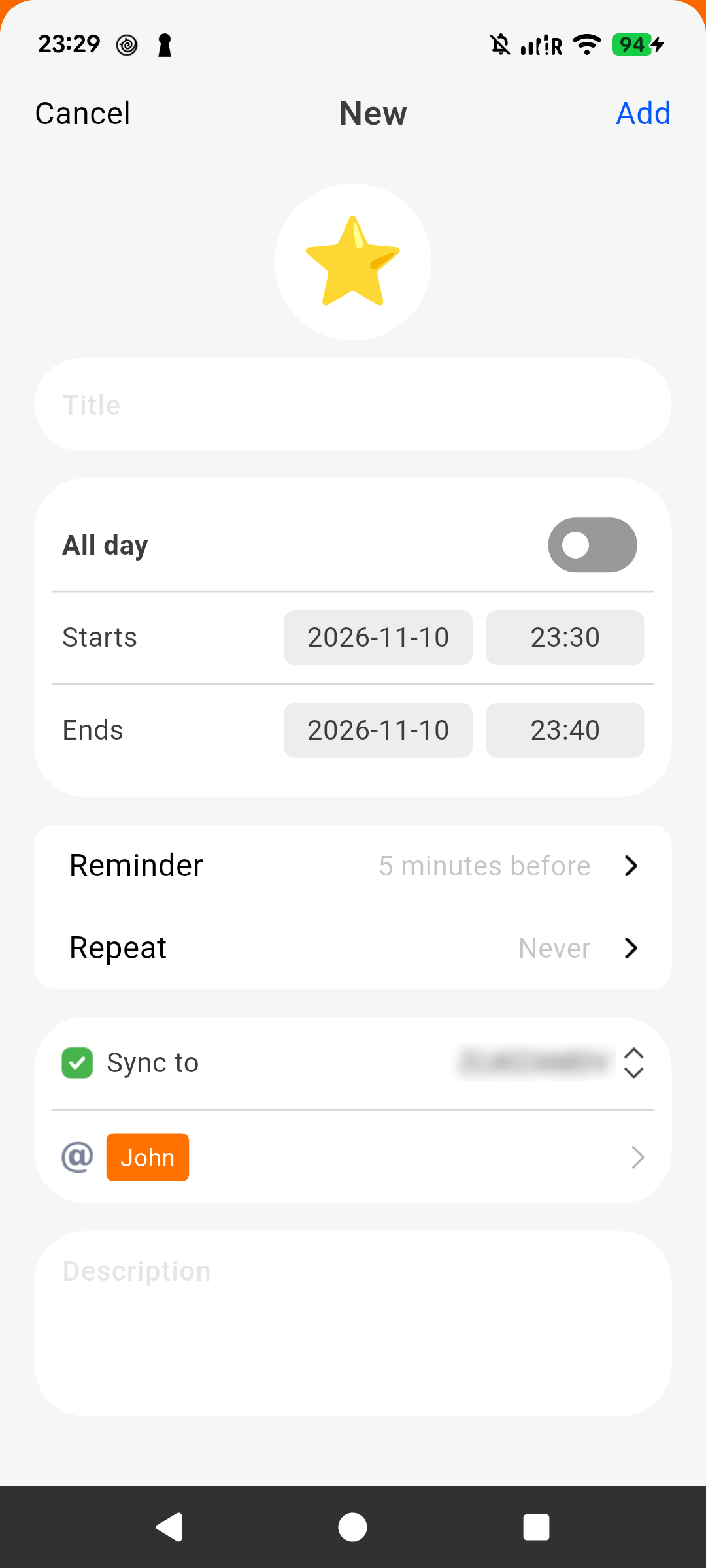
What it does: Records an activity, appointment, or reminder for a specific date and time.
Before you start: Sign in and select the correct member. Device or contact options appear only when available to your account.
Where to find it: Tap + in the home calendar or another new-event shortcut shown by the app.
Steps:
- Select the date in the calendar and tap +.
- Enter a name in Title. Tap the event icon to choose a different symbol if you want.
- Turn on All day for an all-day event. Otherwise, select the start and end dates and times.
- Tap Reminder and choose when to be notified. Choose no reminder if that option is shown and you do not need one.
- Tap Repeat to choose never, daily, weekly, every two weeks, monthly, yearly, or a custom rule. Set an end date if needed.
- If Sync to or member options appear, choose a device or member as needed.
- Add details in Description if useful. Check the title, date, and member, then tap Add.
- Return to the calendar, open the selected date, and confirm the event appears.
Fields:
| Field | Purpose | How to fill it in |
|---|---|---|
| Title | Event name | Text, up to 40 characters |
| Icon | Visual marker | Tap to choose |
| All day | Marks an event as covering the whole day | Switch on or off |
| Starts/Ends | Sets the date and time range | Choose each date and time; all-day events follow the form’s date controls |
| Reminder | Sets an advance notification | Choose an available option |
| Repeat | Sets a recurring pattern | Choose a pattern or custom weekdays; set an end date if needed |
| Sync to | Associates the event with a device | Shown when a device is available |
| Member/contact | Selects related family members | Shown when available for your account |
| Description | Adds extra details | Optional text |
Result: The event appears on the selected date and member calendar. Notifications also depend on your phone’s notification settings.
Notes: Check that the end time is after the start time. Some events from external calendars may be read-only or have recurrence rules managed by the original calendar.
Common issue: If saving does not work, check the title, time range, connection, and account. If member or device choices are missing, check whether those are set up for your account.
Example: Choose a date for a family meeting, enter “Family meeting,” set 7:00–8:00 p.m., choose a reminder 10 minutes before, leave Repeat as never, and tap Add.
In-app screenshot: