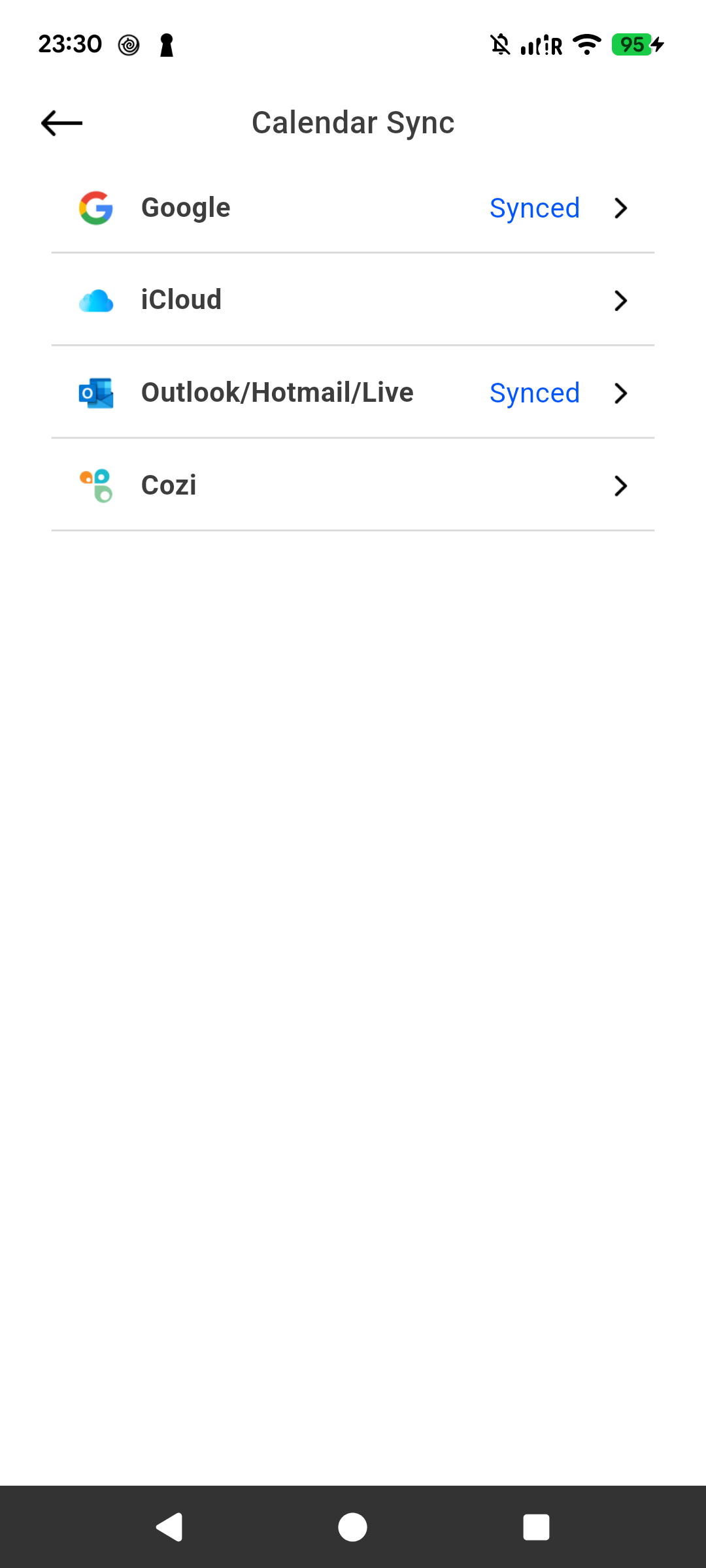
What it does: Connects an external calendar service supported by the app.
Before you start: Sign in and have access to the external calendar account. Some accounts may need a bound KAIROS AI Calendar device.
Where to find it: Settings → Calendar Sync.
Steps:
- Open Settings → Calendar Sync.
- Choose a listed service, such as Google, iCloud, Outlook, or Cozi.
- Sign in on the service’s authorization page.
- Review and grant the requested calendar access, then return to KAIROS Calendar App.
- Check the connection or sync status next to the service.
Fields: There is no fixed form; sign-in and permission details are provided by the selected calendar service.
Result: The sync page shows the connection status after authorization. Available calendar data depends on service permissions and account settings.
Notes: Only authorize accounts you trust. Use the options on the Calendar Sync page to disconnect when needed. Check the service’s own description for sync direction and coverage.
Common issue: If the connection does not appear, refresh the page and check that you authorized the correct account. Bind a device first if prompted.
Example: Choose Google, sign in, grant the requested access, return to KAIROS Calendar App, and confirm that the Google status has updated.
In-app screenshot: