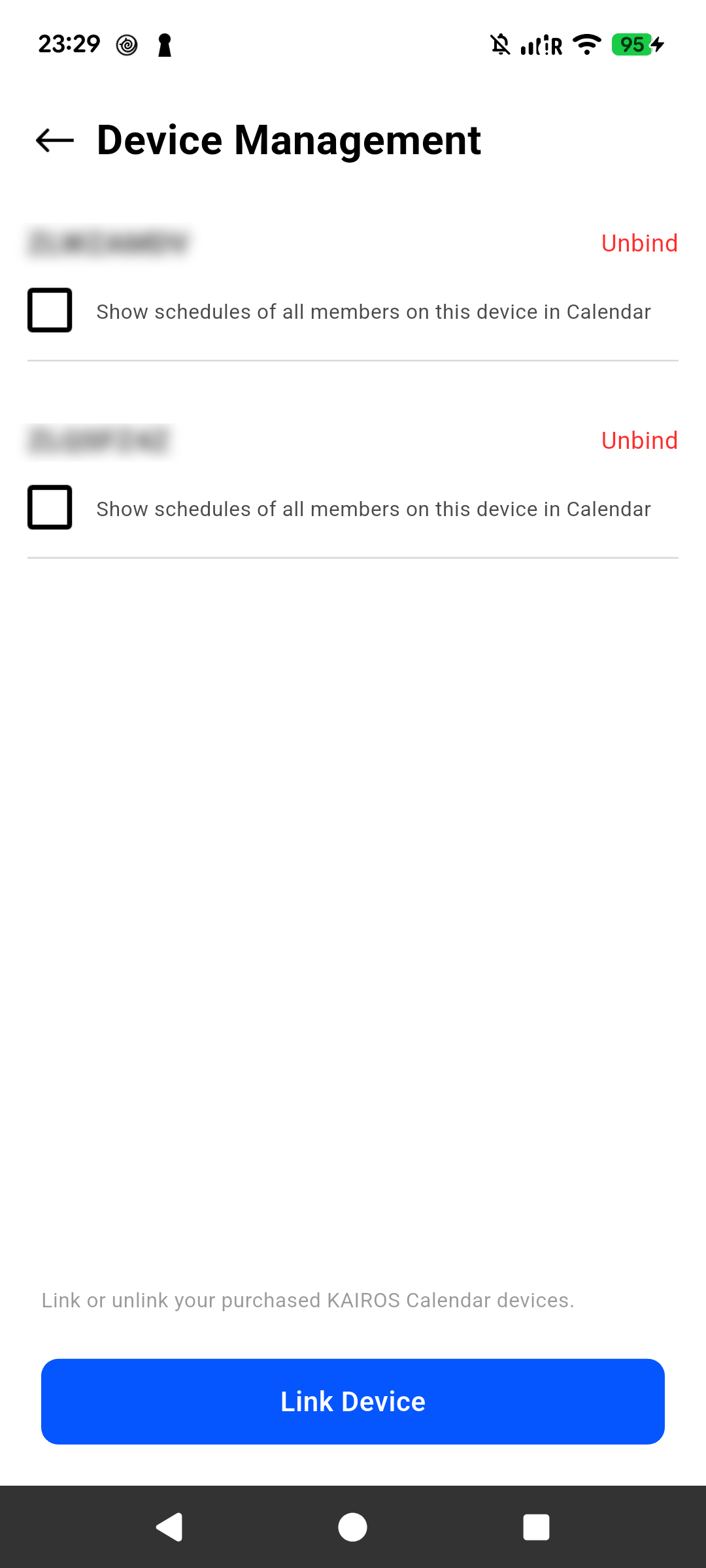
What it does: Binds or manages a KAIROS AI Calendar calendar device and controls which calendar content it displays.
Before you start: You need an available device and a valid account. Follow the pairing instructions shown in the app.
Where to find it: Settings → Device.
Steps:
- Open Settings and tap Device.
- Review bound devices. To add one, tap Bind Device and follow the connection steps.
- Set the option for showing all members’ events on the device calendar if needed.
- Return to the calendar or task area and check device-related content.
- To unlink, choose Unlink for the relevant device and confirm only after checking the prompt.
Fields: Device selection and calendar display options are shown on the Device page.
Result: A successfully bound device appears in the device list. Display options affect which members’ events appear there.
Notes: Unlinking removes the association between the account and that device. Check the selected device before confirming. If it is offline, check power and network.
Common issue: If the device is not found, make sure it is in pairing mode and connected. If binding remains pending, retry the steps shown on screen.
Example: Bind a family calendar device, enable the option to show all members’ events, then check the calendar on the device.
In-app screenshot: