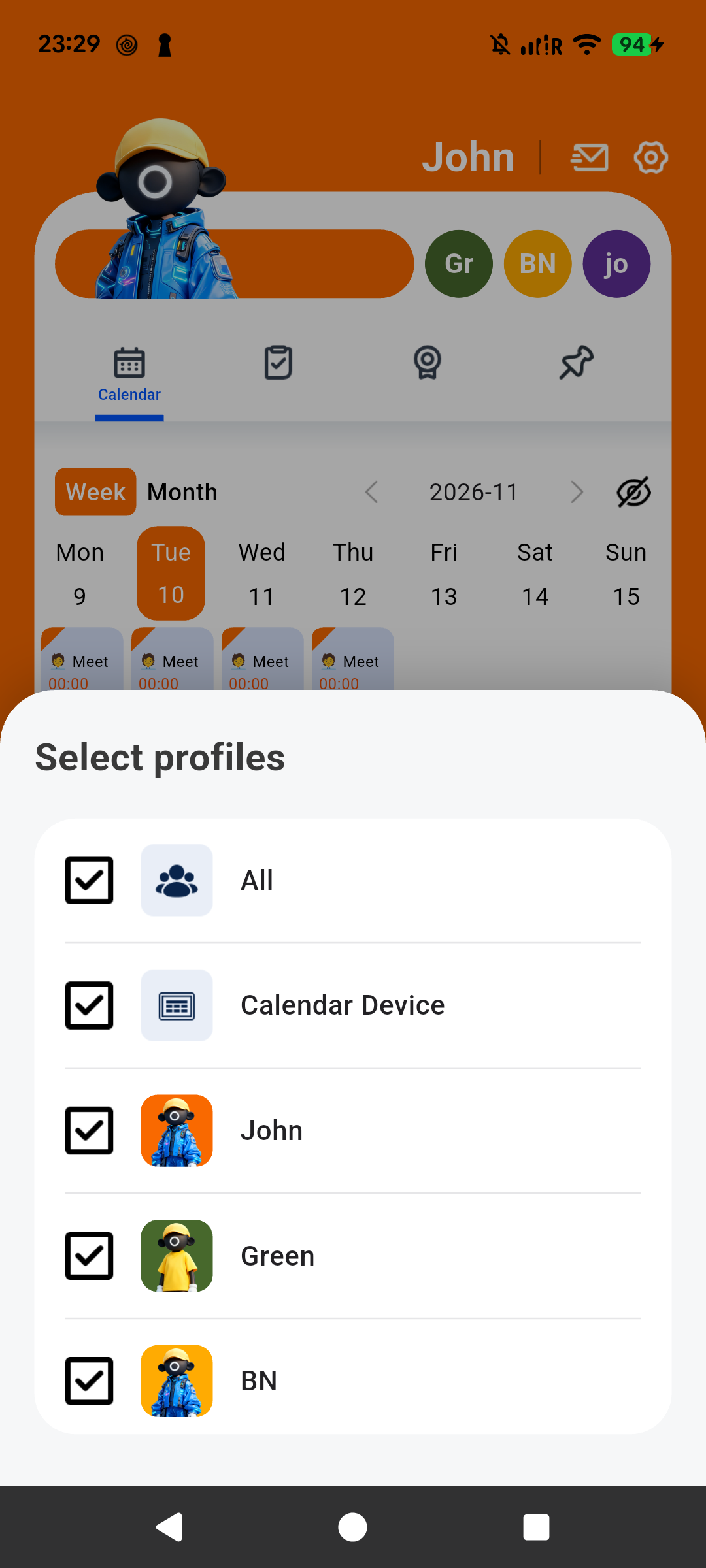
What it does: Shows events by date and, when available, lets you filter by member, creator, or calendar source.
Before you start: Sign in and make sure the account has calendar data.
Where to find it: The Calendar section on the home screen. Use the member avatar/name to switch members and the creator filter to narrow the calendar.
Steps:
- Open the home screen and select Calendar.
- If needed, tap the member avatar/name and select a member.
- Tap a date to view that day’s events. Use the calendar navigation to move to another date.
- Open the creator filter and choose All or an available member/calendar source.
- Review the filtered results. Choose All to clear the filter.
Fields: No form is involved. Filter options depend on available members and calendar sources.
Result: The calendar reflects the selected date, member, and filter. Filtering does not change event data.
Notes: Check the selected member before creating an event. If no filter choices appear, your account may not have other members or sources.
Common issue: If the calendar is empty, check the date, member, and filter first, then check your connection and account.
Example: To review a child’s week, switch to the child’s member profile, move to the relevant week, and choose the child or All in the creator filter.
In-app screenshot: